Showing posts with label rom. Show all posts
Showing posts with label rom. Show all posts
Wednesday, September 10, 2014
How To Upgrade Sony Xperia Sola to Android 4 4 2 Kit Kat by CM 11 ROM
Sony Xperia Sola was released back in 2012, but is still now popular because of its some specifications and price range. The device has minimum requirements for running Android 4.4.2 KitKat in a mobile phone. I thought of writing an easy tutuorial for you guys so you guys can upgrade your GingerBread device to latest Android 4.4.2 Kit Kat OS.

Xperia Sola has decent specifications like 5 Mega Pixels camera, 1 Ghz Dual Core Cortex-A9 processor, Mali 400 GPU, which makes it actually a gaming phone. Mali 400 is one of the best affordable graphic cards for android mobile phones and it is far better than Adreno 200 and Adreno 203. Also, it can record videos up to 720p HD with 30 FPS. The bad thing or cos I found in this device is the chipset, but its not too bad, just talking that if it was SnapDragon then it would be better.
Not talking about the specifications of this device, I will move to the ROM, that is CyanongeMod 11 ROM. We all know about cyanogenmod ROM these days that the ROM is highly customisable, stable, fast and a secure ROM. But what are the features that stock android doesnt provides us? These are FREE Anonymous data usage or incognito mode, DSP Manager, Focal Camera application, CyanogenMod Toolbox or in short, the customisable settings etc. There are many features and thats the reason that the ROM is the best in custom firmwares for android. After downloading and flashing the ROM in your Xperia Sola, you will get to know about this too. I hope you are a rooted user, because if you are not rooted then you cannot flash the ROM. Also I hope you reached here because you have ClockWorkMod Recovery or any other custom recovery? If NO then please search how to root Sony Xperia Sola and How To Install CWM Recovery in Sony Xperia Sola. After rooting your device, you can follow the steps which are mentioned here. Lets start our journey with the requirements!
Requirements and Downloads
Things which you need to see before you install CyanogenMod 11 Android 4.4.2 ROM in your Sony Xperia Sola
Xperia Sola has decent specifications like 5 Mega Pixels camera, 1 Ghz Dual Core Cortex-A9 processor, Mali 400 GPU, which makes it actually a gaming phone. Mali 400 is one of the best affordable graphic cards for android mobile phones and it is far better than Adreno 200 and Adreno 203. Also, it can record videos up to 720p HD with 30 FPS. The bad thing or cos I found in this device is the chipset, but its not too bad, just talking that if it was SnapDragon then it would be better.
Not talking about the specifications of this device, I will move to the ROM, that is CyanongeMod 11 ROM. We all know about cyanogenmod ROM these days that the ROM is highly customisable, stable, fast and a secure ROM. But what are the features that stock android doesnt provides us? These are FREE Anonymous data usage or incognito mode, DSP Manager, Focal Camera application, CyanogenMod Toolbox or in short, the customisable settings etc. There are many features and thats the reason that the ROM is the best in custom firmwares for android. After downloading and flashing the ROM in your Xperia Sola, you will get to know about this too. I hope you are a rooted user, because if you are not rooted then you cannot flash the ROM. Also I hope you reached here because you have ClockWorkMod Recovery or any other custom recovery? If NO then please search how to root Sony Xperia Sola and How To Install CWM Recovery in Sony Xperia Sola. After rooting your device, you can follow the steps which are mentioned here. Lets start our journey with the requirements!
Requirements and Downloads
- Android 4.4.2 Kit Kat CyanongeMod 11 ROM for Sony Xperia Sola: Click HERE. (Download CM11 Build only!)
- Google Apps: Click HERE.
Things which you need to see before you install CyanogenMod 11 Android 4.4.2 ROM in your Sony Xperia Sola
- Make sure you are a rooted user and have CWM installed in your handset.
- Dont install/flash this ROM on any other device because it may result in bricking up.
- Dont flash the ROM until you make a proper Nandroid backup with all partitions backed up.
- The ROM will take atleast 1 minute to boot up because the Firmware will build its file and all so dont panic and shut the device off.
- Dont follow anything which is not mentioned in this article.
How To Install Android 4.4.2 KitKat (CM11 ROM) in Sony Xperia Sola
- Download the ROM and Google Applications on your PC.
- Move it to SD Card of your Sony Xperia Sola.
- Shut down the device and reboot it to recovery
ADB SHELL
SU
REBOOT RECOVERY - After rebooting it to the CWM or any other recovery, select Backup and restore and select Backup to make a full backup of your current ROM.
- Select Wipe data/factory reset from the main menu to wipe the user data.
- Select Advanced and select /format system option to format your System partition.
- Now, select Wipe dalvik cache in advanced.
- Finally, select Flash a zip from sd card from the main menu and select your ROM which you recently downloaded and moved to your SD Card.
- Confirm the flash and wait for some time.
- Again, select Wipe data/factory reset option.
- [Optional!] Flash Google Apps by selecting Flash a zip from sdcard and confirming the flash.
- Reboot!
This boot will take more time than the usual backup because the CyanogneMod 11 or Android 4.4.2 Kit Kat ROM is building dalvik cache, data, and other required files to boot the system. It will not take more than 1-2 minutes. If it is stuck anywhere, then pull the battery of and reboot to recovery. Wipe the data again and then reboot.

Wednesday, August 27, 2014
How To Install CyanogenMod 11 ROM Android 4 4 2 In Motorola Moto G
CyanogenMod is the best custom ROM or firmware for Android currently. There are many other ROMs like CarbonROM, MiUi, Lewa OS etc. which are popular but CyanogenMod ROM is mother of these ROMs! There are many reasons for that like when the new version of Android releases, CyanogenMod releases their next Firmware or ROM version as soon as possible but in less than 1 week after the release. That makes people to download the ROM and not only this, the ROM provides many features that stock roms dont provide like DSP manager, Focal application, Theme support, better and faster notification bar, better and modified call application, fully cusomtizable, all blotwares, light launcher, VPN like application which allows you to surf internet anonymously.

I am now fed of writing the long features of this ROM so you can see some features of this ROM in my older post on Samsung Galaxy S for this ROM.
You can Google too about the features of this ROM and other details of this ROM and about CyanogenMod. Lets first of all see prerequisites and downloads and then finally the main guide of installing the ROM in your device
Prerequisites and Downloads
I am now fed of writing the long features of this ROM so you can see some features of this ROM in my older post on Samsung Galaxy S for this ROM.
You can Google too about the features of this ROM and other details of this ROM and about CyanogenMod. Lets first of all see prerequisites and downloads and then finally the main guide of installing the ROM in your device
Prerequisites and Downloads
- CyanogenMod 11 ROM for Motorola Moto G: click here (choose any version which you like.)
- Unlocked Motorola Moto G.
- Rooted Motorola Moto G.
- ClockWorkMod Recovery (tutorial for this recovery ONLY) or any other recovery like TWRP etc.
- Charged Motorola Moto G upto 70%.
- Dont flash the ROM on any other devices like Motorola Moto X just thinking that the name or the specifications of the device are almost same.
- Dont mix the content of this ROM with any other ROM like SlimROM, Stock ROM or any other ROM because it might not boot.
- Follow only things which are written here! If you followed anything else, no support will be provided.
- The ROM works in any bootloader, either on Android 4.3 Bootloader or Android 4.4 Bootloader.
- MXRootRom is not responsible for bricked Motorola Moto G. You may end up with bricking your Motorola Moto G like device not booting, SD Card not detecting or any other thing that fails to work. For that reason, I have added a special step to make a Nandroid backup but even after making a nandroid backup, I am not responsible for your device. You are trying the guide on your will not mine.
- Nothing special except some common sense.
How To Upgrade Motorola Moto G to CyanogenMod 11 Kit Kat ROM [Android 4.4.2]
- Download the ROM from your PC or from any source.
- Move the ZIP to your SD Card without extracting the ROM or touching it (by touching, I mean by modifying the contents of it.)
- Reboot yout Motorola Moto G to Recovery. If you dont know how to do that so type these commands in terminal emulator
su
reboot recovery. - When you will be in CWM Recovery open Backup and Restore option from it and select Backup.
- After the backup completes, select Wipe data/factory reset option.
- After wiping your data, go to Advanced option in CWM recovery and select Wipe dalvik cache.
- Now select install zip from sdcard option from the main menu and select the ZIP which you just moved to your SD Card and confirm it by selecting Yes in CWM prompt.
- [Optional!!] Now flash Google Applications by using selecting install zip from sdcard and selecting the ROM and confirming.
- Select Wipe data/factory reset option.
- Reboot!
The ROM will take some more time to reboot because the system is building dalvik cache, data, cache and other files that are required for the booting of the system. The ROM will not take more than 5 minutes to boot, please dont shut down the device in the booting. If the ROM boots properly, then please comment here and give us your reviews, even if the ROM fails to boot, then too comment here and telling whats not working and the steps that you followed.
Monday, June 9, 2014
Galaxian Custom ROM for Lava Iris 405 Full Samsung ROM
Do you like a Samsung device just for TouchWiz UI and features and are dying for buying it? Then go and buy the device. Heres the solution for Lava Iris 405 users who want a Samsung device just for UI and for nothing else. You can try this superb ROM made by my brother from another mother Vipul Verma. Hes a great developer, he has also ported REAL CyanogenMod 9 to Lava Iris 405 but fixing some bugs in it, other than it, he ported MiUi, LeWa OS, Xperia Z1 and other ROMs to Lava Iris 405 already. He also ported CWM and TWRP Recovery to the device.
He worked more than 1 month for his ROM, and he was having his exams too which delayed the release of ROM, anyway, but the ROM is released today so you can be happy.
He is a great developer, and I think he deserves a lot of thanks because of his work. The custom ROM is having real Samsungs SystemUI (statusbar) and other Samsungs file which makes it look like a real Samsung ROM.
Lets see features, screenshots, requirements, downloads and installing guide of this superb ROM.
Features
Screenshots of Galaxian ROM for Lava Iris 405
Requirements for installing Galaxian ROM in Lava Iris 405
He worked more than 1 month for his ROM, and he was having his exams too which delayed the release of ROM, anyway, but the ROM is released today so you can be happy.
He is a great developer, and I think he deserves a lot of thanks because of his work. The custom ROM is having real Samsungs SystemUI (statusbar) and other Samsungs file which makes it look like a real Samsung ROM.
Lets see features, screenshots, requirements, downloads and installing guide of this superb ROM.
 |
| Credits: KillerMobi |
Features
- Based on 3-4 ROMs. Cherry Picked features for users.
- Air Gesture Working (Gallery Only, as TouchWiz giving FC.).
- Smart Scroll (In Browser, Just tilt your phone and see magic of scrolling.).
- Default Video Player with Pop-Video Feature From Samsung.
- SystemUI of Samsung Completely with Delete all Recent Apps Button.
- New Dialer of Samsung (Both Sim Keys).
- Most of Samsung Apps - SVoice, SMemo, SCalender, TouchWiz Calculator, etc.
- Settings of S4.
- Completely Stable without FC.
- S4 Launcher
- Volume+ & OG YouTube Integrated.
- A very tiny app for Rebooting Functions.
- SystemUI - Notification Panel with some extra, Toggles for Smart Scroll, Multi-Window (Sidebar only), AirGesture, etc.
- Xtreme Script & Pre-Cache Swap Enabled (My Favorite Tweaks).
- New Style (Almost a Mix-breed of Samsung & MTK) File Manager.
- Some New Ringtones from Note3 ROM.
- Flare Light Lockscreen Inbuilt with Widget Supports.
- Stausbar Transparent only in Launcher & LockScreen. No where else. Just like S4 & Note3.
- Samsung Style Gallery & Camera App & Icons.
Screenshots of Galaxian ROM for Lava Iris 405
 |
| Credits goes to me for capturing these screenies! |
 |
| Credits goes to me for capturing these screenies! |
Requirements for installing Galaxian ROM in Lava Iris 405
1 GB RAMRooted Lava Iris 405 with ClockWorkMod or TWRP Recovery installed in it.- Internet connection- for downloading the ROM.
Prerequisites
- Dont do anything else which is not stated in this article.
- Dont proceed before making a Nandroid backup.
- Dont try the ROM on any other device except Lava Iris 405.
- Dont mix the content of ROM with the contents of others.
Downloads
- Galaxian ROM for Lava Iris 405- Click HERE.
- Nothing else.
How to install Galaxian Custom ROM in Lava Iris 405
- Download the ROM from your PC or mobile.
- If youre downloading from PC then move it to your SD Card, and if youve downloaded it from mobile, then move it to the root of your SD Card "/" for ease.
- Shut down the device completely.
- Press and hold Volume Down (-) + Power Button simultaneously for some time until you see ClockWorkMod Recovery.
- Go to backup and restore and select Backup, wait for some seconds till it completes.
- Go to mounts and storage and format the system (format /system)
- Select Wipe dataFactory reset from the main menu to wipe the whole data partition.
- Go to advance and clear dalvik cache.
- Now select Install zip from sdcard from the main menu and follow to the ROM [Galaxian Iris ROM for Lava Iris 405.zip]
- Click Yes from the another menu.
- Reboot!
This reboot will take much more time than the normal reboot takes because the system is building some necessary files which are required to boot. Dont get panic and make a Maggi!
Tuesday, May 13, 2014
How To Install MiUi v5 ROM in Lava Iris 405
Lava Iris 405 is on high-peek development. The device is having many ROMs and I say its one of the best Lavas device which is having best development support. Last time I posted Jelly Bean for Lava Iris 405 and this time I will show you MiUi For Lava Iris 405. The ROM is based on Android 4.2.2 Jelly Bean so dont expect any upgrade for this device. Again, the ROM is ported by my buddy Vipul Verma only. MIUI ROM is like LeWa OS, Mokee OS, Joy OS, CyanogenMod etc. and is one of the best ROM today because it has really good UI and performance. Actually, the performace of the ROM is not good but the UI is even better than CyanogenMod ROM. Same as CM, you can download thousands of theme and install in your device. Lets move to some features of MiUi ROM-
Some features of MiUi ROM-
How To Install the ROM in Lava Iris 405
Some features of MiUi ROM-
- Cool launcher
- Customizable
- Privacy Protection settings
- Flash Light support
- One-click cache clean up
- Awesome boot animation
- Theme Support
- Nice animations
- Brilliant notification bar
- New and revamped Settings Application
- New and improved Music Application
- Added some tweaks
- etc.
There are many things in the ROM which you would love it. The ROM is having some much same UI as of LeWa OS. But there are many other tweaks and I said its some much, and not exactly/too much. Okay, lets see some pictures of this cool ROM.
The ROM Ill give you will not be in Chinese, dont worry. Okay, now lets see what are the requirements, prerequisites and downloads.
Requirements to install MiUi v5 in Lava Iris 405
- The ROM [Link is provided, scroll for it.]
- Lava Iris 405
Prerequisites
- Dont try downloading and trying this ROM on any other device except Lava Iris 405.
- Do not flash the ROM without making a Nandroid backup.
- Flash it only with a Custom Recovery.
- Do not add/remove files in the ROM because it may fail to boot if you do so.
Downloads
- The ROM link- Miui v5 Custom ROM for Lava Iris 405.zip
- Download the ROM into your computer [Do not unzip or extract the ROM]
- Move the ROM into SD Card and again dont extract it!
- Shut down the phone completely and remove the battery
- Add the battery after some seconds
- Reboot Iris 405 to ClockWorkMod Recovery
- Make a Nandroid Backup [Imp!]
- Wipe the Data and cache partition
- Go to Advance and wipe the dalvik cache
- Go to Mounts and Partitions and format the system [Format /System]
- Flash the ROM
- Reboot
Wait for some time in the first boot because the system is building some caches and other data files for the boot.
Friday, March 21, 2014
ROM Toolbox Pro Paid v5 9 8 Free Apk

ROM Toolbox has every tool you need to make your Android device fast and customized to your liking. Save 85% by getting ROM Toolbox instead of spending $30 or more on other apps.
ROM Toolbox has been featured on LifeHacker, XDA-Developers, Droid-Life, Android Central, RootzWiki, Android Police, DroidForums and other popular sites.
ROM Toolbox combines apps like Titanium Backup, ROM Manager, Root Explorer, SetCPU, Ad Blocker, MetaMorph, Autorun Manager, Terminal Emulator, Script Manager, SD Booster, BuildProp Editor, Font Installer, Boot Animation Installer & many more apps into an all-in-one app!
ROM Toolbox has been featured on LifeHacker, XDA-Developers, Droid-Life, Android Central, RootzWiki, Android Police, DroidForums and other popular sites.
ROM Toolbox combines apps like Titanium Backup, ROM Manager, Root Explorer, SetCPU, Ad Blocker, MetaMorph, Autorun Manager, Terminal Emulator, Script Manager, SD Booster, BuildProp Editor, Font Installer, Boot Animation Installer & many more apps into an all-in-one app!
Download full version v5.9.8 APK FILE: HERE
Google Play
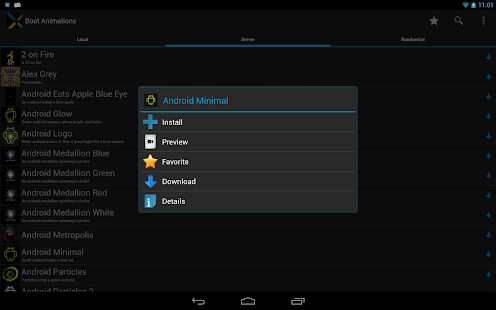
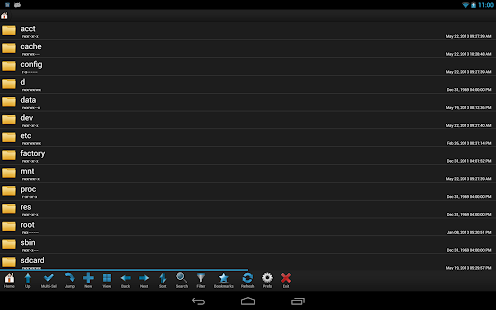
ROM Toolbox combines all the great root apps into one monster app with a beautiful and easy to use interface.
ROM Toolbox Pro v5.9.8
Size: 8.6 Mb | Android: 2.0 and up
Subscribe to:
Posts (Atom)