Showing posts with label 10. Show all posts
Showing posts with label 10. Show all posts
Monday, April 6, 2015
10 Best Finance Apps for Android
1. Chase Mobile (Free)
Chase Mobile lets customers manage their banking 24/7 from their phones. View accurate account balances and viewing history, transfer funds between both savings and checking accounts, and make quick deposits no matter where you are. Search for the nearest Chase bank branch and ATMS. Connect with Chase representatives while on the go.
2. PayPal (Free)
Sending money is easy with PayPal Android app. It has the same basic features as other banking platforms, which include checking your balance and transferring funds. Take pictures of a check and add it to your savings or checking accounts for free. The "Local" function lets users connect with local merchants and pay them with PayPal. Financial information you add into your profile will always be safe and secure. Store owners will get paid directly and will receive a free card reader.3. Bank Of America Mobile Banking (Free)
Bank of America Bank of America will help customers with their banking needs. Users can take pictures of a check and deposit it into your designated account. Push notifications sends users Bank of America alerts on branch closing, new merger etc. Get cash back in your account when you use your debit or credit cards for various purchases. If you owe someone money, send money by using an email address or mobile number.4. Mint.Com Personal Finance (Free)
Mint.com lets users keep track of all their personal finance account in one place. Track spending, create a budget, and save more. Categorize transactions and see charts and graphs that show where you’re spending your money. If you lose your Android device, or misplace it, you can deactivate it from your profile.5. GEICO App (Free)
Geico’s app allows users to manage their insurance while on the go. Users can view coverage information, discounts, pay bills, and view claims. In addition, users can also change their payment plans quickly and efficiently. Driver and vehicle information is available with a simple tap of the screen. Benefits of the app includes notifying roadside assistance without having to make a phone call. The accident guide will provide a step-by-step guide to help users record information from an accident scene, including photos. This app is only available for policyholders.
6. Discover Mobile (Free)
Manage your Discover credit card account using Discover Android app. View your account information, manage rewards, and send money. Easily send money using Money Messenger by PayPal and set up your Cash PIN to retrieve cash from ATMs. Refer friends to Discover and earn more rewards.7. Google Finance
Finance for Android allows users to stream real-time quotes. The app synchronizes with your Google Finance portfolios, gives access to charts and view market and company news.8. Google Wallet
Google Wallet keeps all of your credit and debit cards safe and secure. Users can use any credit card from Visa, MasterCard, American Express, or Discover with the app. Make in-store purchases by tapping your phone. Payment information will be transmitted via NFC. Google Wallet has its own pin, so if you lose your phone, you can disable your mobile wallet.9. USAA Mobile
USAA Mobile USAA mobile allows users to access accounts from their mobile device. Users can pay bills, transfer funds, send money, track spending, and get quotes and market news. Members can deposit checks, report a loss, and use the loan calculator.
10. E-Trade Mobile
With E-Trade Mobile for Android, users can stream real-time quotes, and manage accounts. Monitor brokerage accounts, place trades for stocks, and create watch lists from your phone. Deposit checks, quick transfer cash, and watch live CNBC video and video on demand.

Sunday, April 5, 2015
Top 10 Best Email Apps for iPhone
Are you obsessed with trying to make it to “inbox zero?” Are you tired of using the standard Mail app on iOS? Heres a list of email apps found on the app store that could satisfy your inbox OCD.

Since its beta release, Mailbox has been the most popular third-party email client on the iOS App Store.
Users can add up to five Gmail or Google app accounts to their Mailbox account. Swipe messages and them to archive or trash. Scan entire conversations, snooze emails, and get push notifications for new messages.
You can download Mailbox from the App Store here.
Boxer is an email client developed by Taskbox. Similar to Mailbox, users can use swipe gestures to read through new messages. See who your emails are from with profile pictures shown in your inbox. Use “like” to acknowledge a friends message, and use "quick" replies to send common responses while on the go.
Boxer supports Exchange, Gmail, Yahoo, and iCloud.
You can purchase Boxer from the App Store here.
With Googles official Gmail app, users can easily manage and organize their Gmail inbox. Get notified of new mail, see profile pictures as part of the conversation, and read email with threaded conversations.
Organize your mail by archiving, labeling, starring, delete, or report as spam. The new tab system has 5 different categories including primary, social, promotions, updates, and forums. Easily switch between 5 email account. If you dont like the new version, you can always switch back to the classic inbox.
You can download Gmail from the App Store here.
Yahoo! Email is an email app developed by Yahoo! Instantly receive notifications for new messages. Scan messages in your inbox and swipe to delete, flag, move, mark as read and more. Attach photos while composing a new message, and preview photos at the top of the message. Auto complete email addresses when you type.
You can download Yahoo! Email from the App Store here.
If youre struggling to keep up with your email accounts inbox, you may want to check out Triage by Southgate Labs. When you login to your email account, new messages will appear as a stack of cards. Flick messages down to keep them in your inbox, or flick messages up to archive. Triage supports Gmail, iCloud Mail accounts, and Yahoo! Mail.
You can purchase Triage from the App Store here.
Dispatch is an email client app for iOS that makes it easy to organize, delegate, and archive your email.
Being a Mailbox competitor, Dispatch has its own unique benefits for those with inbox OCD. The app allows snippets, allows users to respond to emails with common responses, and even customize settings based on the account being used. There is great integration with other third-party apps 1Password, Due, Omifocus, Evernote, and more. For now, the app doesn’t feature push notifications or a unified inbox, which may be a dealbreaker for some.
You can purchase Dispatch from the App Store here.
Mail Pilot is an app that turns your inbox into a to-do-list. With Mail Pilot, new messages arrive in your inbox as incomplete. When you finish a task, mark the message as complete, and it will automatically be archived by Mail Pilot. Easily collect messages from multiple accounts at once, and manage newsletters, social media notifications, and upcoming events. Mail Pilot works with Gmail, iCloud, AOL, Yahoo, and other email service providers.
You can purchase Mail Pilot from the App Store here.
Group Email is for users who frequently send...wait for it... group emails! This app makes it very simple to create distribution lists from your contacts, create and send email templates, and easily add photos, videos, and other files from cloud storage services such as Dropbox and SkyDrive.
You can purchase Group Email from the App Store here.
Findit is a very simple file and email searching app that integrates with Gmail, Dropbox, and Google Drive.
Findit uses a very visual and minimal interface to search for items through filters. It can even search through several unique Gmail, Dropbox, and Drive accounts. Hopefully the developer will integrate with more services in future updates.
You can download FindIt from the App Store here.
If you have an MS Office 365 subscription, you have the benefit of downloading and using Microsoft’s OWA app, which brings all of the live panel goodness of Outlook on Windows Phone 8 to the iPhone. OWA for iPhone has all of the inbox and calendar features that are expected from Outlook. If you are an Outlook power user and an Office 365 subscriber, you can download OWA from the App Store here.
Read more »
1. Mailbox
Since its beta release, Mailbox has been the most popular third-party email client on the iOS App Store.
Users can add up to five Gmail or Google app accounts to their Mailbox account. Swipe messages and them to archive or trash. Scan entire conversations, snooze emails, and get push notifications for new messages.
You can download Mailbox from the App Store here.
2. Boxer
Boxer is an email client developed by Taskbox. Similar to Mailbox, users can use swipe gestures to read through new messages. See who your emails are from with profile pictures shown in your inbox. Use “like” to acknowledge a friends message, and use "quick" replies to send common responses while on the go.
Boxer supports Exchange, Gmail, Yahoo, and iCloud.
You can purchase Boxer from the App Store here.
3. Gmail
With Googles official Gmail app, users can easily manage and organize their Gmail inbox. Get notified of new mail, see profile pictures as part of the conversation, and read email with threaded conversations.
Organize your mail by archiving, labeling, starring, delete, or report as spam. The new tab system has 5 different categories including primary, social, promotions, updates, and forums. Easily switch between 5 email account. If you dont like the new version, you can always switch back to the classic inbox.
You can download Gmail from the App Store here.
4. Yahoo Mail
Yahoo! Email is an email app developed by Yahoo! Instantly receive notifications for new messages. Scan messages in your inbox and swipe to delete, flag, move, mark as read and more. Attach photos while composing a new message, and preview photos at the top of the message. Auto complete email addresses when you type.
You can download Yahoo! Email from the App Store here.
5. Triage
If youre struggling to keep up with your email accounts inbox, you may want to check out Triage by Southgate Labs. When you login to your email account, new messages will appear as a stack of cards. Flick messages down to keep them in your inbox, or flick messages up to archive. Triage supports Gmail, iCloud Mail accounts, and Yahoo! Mail.
You can purchase Triage from the App Store here.
6. Dispatch
Dispatch is an email client app for iOS that makes it easy to organize, delegate, and archive your email.
Being a Mailbox competitor, Dispatch has its own unique benefits for those with inbox OCD. The app allows snippets, allows users to respond to emails with common responses, and even customize settings based on the account being used. There is great integration with other third-party apps 1Password, Due, Omifocus, Evernote, and more. For now, the app doesn’t feature push notifications or a unified inbox, which may be a dealbreaker for some.
You can purchase Dispatch from the App Store here.
7. Mail Pilot
Mail Pilot is an app that turns your inbox into a to-do-list. With Mail Pilot, new messages arrive in your inbox as incomplete. When you finish a task, mark the message as complete, and it will automatically be archived by Mail Pilot. Easily collect messages from multiple accounts at once, and manage newsletters, social media notifications, and upcoming events. Mail Pilot works with Gmail, iCloud, AOL, Yahoo, and other email service providers.
You can purchase Mail Pilot from the App Store here.
8. Group Email
Group Email is for users who frequently send...wait for it... group emails! This app makes it very simple to create distribution lists from your contacts, create and send email templates, and easily add photos, videos, and other files from cloud storage services such as Dropbox and SkyDrive.
You can purchase Group Email from the App Store here.
9. FindIt
Findit is a very simple file and email searching app that integrates with Gmail, Dropbox, and Google Drive.
Findit uses a very visual and minimal interface to search for items through filters. It can even search through several unique Gmail, Dropbox, and Drive accounts. Hopefully the developer will integrate with more services in future updates.
You can download FindIt from the App Store here.
10. OWA
If you have an MS Office 365 subscription, you have the benefit of downloading and using Microsoft’s OWA app, which brings all of the live panel goodness of Outlook on Windows Phone 8 to the iPhone. OWA for iPhone has all of the inbox and calendar features that are expected from Outlook. If you are an Outlook power user and an Office 365 subscriber, you can download OWA from the App Store here.
Sunday, August 3, 2014
10 tips to make your phone more secure
Your smartphone is more precious than your wallet, your keys and in some cases, your actual computer when it comes to sensitive information - but we all have that nagging guilt that we dont do enough to protect our devices beyond perhaps having a four digit pass code.

Thankfully we are here to help with some top-level tips to help make your phone more secure, protecting those all important messages and images that you dont want falling into the wrong hands.
With around 314 mobiles stolen a day on the streets of London, the risk of things getting out is extremely high.
Of course if youre looking to keep your phone safe from international spies, or snooping networks, you can always check out the BlackPhone... but if youre just the average smartphone user who wants to be a little safer, follow some of our tips below.
Whether you are running iOS, Android or Windows Phone we will always advise you to grab the latest version of the OS available. This can be a little difficult with Android updates often taking a little while to go through manufacturer and network testing but is well worth it.
Part of the reason we suggest grabbing the latest OS is because it comes with all the added bonuses whether its the Control Center of iOS7 or the clear bars on Android KitKat, but also because a lot of security loopholes will have been closed.
These updates dont just pop up in major iterations either; Apple is currently pushing out iOS 7.0.6 in order to close a problem associated with using Apple devices on an unsecured network.
Most manufacturers allow you to set your phone to check for updates automatically, so always make sure this box is ticked.
It seems almost nonsensical in this day and age to not have a basic password on your lock screen, even if it is a basic one. One of the first things wed suggest is to navigate into your devices security settings and enable a pass lock.
There are obvious benefits to having even a basic lock, but whilst face lock of Android might seem fun it isnt the most secure system out there, with many Google devices rating the effectiveness of each security system so you can make an informed choice.
Pattern unlocks and pins are some of the most secure but if you can handle the hassle wed always suggest a full alphanumeric password. Also ensure that any boxes that say "make passwords visible" are also unticked.
If you want to take it one step further then wed also recommend changing your pass code regularly in case someone spots what youve typed in over your shoulder.
One of the biggest threats that could see data leaked is the less-than-humble virus. The problem isnt as widespread as on desktop computers, and if you dont download dodgy software chances are that within a 2 year contract you wont come across anything malicious, but there is still a credible threat out there.
The problem appears to be less hazardous for iPhones thanks to Apples strict controlling of the App store.
The open source nature of Android makes it a lot more vulnerable, as malicious apps can be sideloaded onto the device without being checked by Google. In both cases this is something that can be countered through the use of mobile Antivirus software.
The likes of McAfee, AVG and Lookout grace both the iOS App Store and the Google Play store for added security, but obviously be careful of any apps that seem a little suspicious.
If youre really worried check out the manufacturers website as most will come with a link to their mobile app.
Whilst it can often be a nice idea to download and install apps that arent found on the App Store or Google Play Store, these apps tend to be the ones that are less secure. Google, Apple and Microsoft, as well as the likes of BlackBerry, keep tabs on the apps that are on their app portals.
This means apps that contain malicious code are likely to have been removed before you install them.
Rooting your Android phone or jailbreaking your iPhone can also prove really dangerous, especially if you dont know what youre doing. This is because it breaks down your OS and provides you access to the basic code within and if you can get access, malicious code has a much easier route to making changes too.
If youre more familiar with the world of rooting and jailbreaking then youll have taken measures to ensure the security of your device - so make sure youre certain you know what you want when altering your handset.
One thing that can be particularly important for protecting vital messages and pictures is to add a second layer of security. If youve got a pass code that somehow manages to get into the wrong hands then all your data could potentially be at risk.
With another app you can then add another layer of security by protecting apps with a second code. Vault apps also allow you to be safe by storing all the files that you want to secure within a dedicated area of your device or on an SD card, as well as being able to wipe the data after unsuccessful log in attempts.
Samsungs new Galaxy S5 features a fingerprint scanner to hide certain parts of your phone too - it might not be the easiest thing to use, but at least you can be doubly secure that nobody can get into the places you want hidden.
Read more »
Thankfully we are here to help with some top-level tips to help make your phone more secure, protecting those all important messages and images that you dont want falling into the wrong hands.
With around 314 mobiles stolen a day on the streets of London, the risk of things getting out is extremely high.
Of course if youre looking to keep your phone safe from international spies, or snooping networks, you can always check out the BlackPhone... but if youre just the average smartphone user who wants to be a little safer, follow some of our tips below.
1. Update your software
Whether you are running iOS, Android or Windows Phone we will always advise you to grab the latest version of the OS available. This can be a little difficult with Android updates often taking a little while to go through manufacturer and network testing but is well worth it.
Part of the reason we suggest grabbing the latest OS is because it comes with all the added bonuses whether its the Control Center of iOS7 or the clear bars on Android KitKat, but also because a lot of security loopholes will have been closed.
These updates dont just pop up in major iterations either; Apple is currently pushing out iOS 7.0.6 in order to close a problem associated with using Apple devices on an unsecured network.
Most manufacturers allow you to set your phone to check for updates automatically, so always make sure this box is ticked.
2. Use a secure lock screen
It seems almost nonsensical in this day and age to not have a basic password on your lock screen, even if it is a basic one. One of the first things wed suggest is to navigate into your devices security settings and enable a pass lock.
There are obvious benefits to having even a basic lock, but whilst face lock of Android might seem fun it isnt the most secure system out there, with many Google devices rating the effectiveness of each security system so you can make an informed choice.
Pattern unlocks and pins are some of the most secure but if you can handle the hassle wed always suggest a full alphanumeric password. Also ensure that any boxes that say "make passwords visible" are also unticked.
If you want to take it one step further then wed also recommend changing your pass code regularly in case someone spots what youve typed in over your shoulder.
3. Install antivirus software
One of the biggest threats that could see data leaked is the less-than-humble virus. The problem isnt as widespread as on desktop computers, and if you dont download dodgy software chances are that within a 2 year contract you wont come across anything malicious, but there is still a credible threat out there.
The problem appears to be less hazardous for iPhones thanks to Apples strict controlling of the App store.
The open source nature of Android makes it a lot more vulnerable, as malicious apps can be sideloaded onto the device without being checked by Google. In both cases this is something that can be countered through the use of mobile Antivirus software.
The likes of McAfee, AVG and Lookout grace both the iOS App Store and the Google Play store for added security, but obviously be careful of any apps that seem a little suspicious.
If youre really worried check out the manufacturers website as most will come with a link to their mobile app.
4. Disable apps from untrusted sources and dont root or jailbreak
Whilst it can often be a nice idea to download and install apps that arent found on the App Store or Google Play Store, these apps tend to be the ones that are less secure. Google, Apple and Microsoft, as well as the likes of BlackBerry, keep tabs on the apps that are on their app portals.
This means apps that contain malicious code are likely to have been removed before you install them.
Rooting your Android phone or jailbreaking your iPhone can also prove really dangerous, especially if you dont know what youre doing. This is because it breaks down your OS and provides you access to the basic code within and if you can get access, malicious code has a much easier route to making changes too.
If youre more familiar with the world of rooting and jailbreaking then youll have taken measures to ensure the security of your device - so make sure youre certain you know what you want when altering your handset.
5. Use lock code apps and vaults
One thing that can be particularly important for protecting vital messages and pictures is to add a second layer of security. If youve got a pass code that somehow manages to get into the wrong hands then all your data could potentially be at risk.
With another app you can then add another layer of security by protecting apps with a second code. Vault apps also allow you to be safe by storing all the files that you want to secure within a dedicated area of your device or on an SD card, as well as being able to wipe the data after unsuccessful log in attempts.
Samsungs new Galaxy S5 features a fingerprint scanner to hide certain parts of your phone too - it might not be the easiest thing to use, but at least you can be doubly secure that nobody can get into the places you want hidden.
Smartphones tips and tricks Tablets tips and tricks Smartphones reviews
Smartphones rooting Tablets reviews News from mobile world
Smartphones rooting Tablets reviews News from mobile world
Wednesday, July 23, 2014
Google Nexus 10 2014 pictures leak ahead of launch
Claimed Google Nexus 10 2014 pictures have leaked, with images of the next-generation Android tablet making a premature appearance online.

Read more »
Appearing courtesy of serial tech tipster @Evleaks, the new Google Nexus 10 2014 pictures have surfaced via an anonymous insider source. The snaps have showcased a 10-inch slate that looks set to appear in both black and white colour schemes.
A plastic-bodied tablet with few apparent design features that will set it apart from the crowd, the second-generation Google Nexus 10 tablet will reportedly mimic the original in being manufactured by leading mobile player Samsung.
Tweeting the image of the upcoming tablet, @Evleaks has offered a few sparse details on the Google Nexus 10 2014 specs, including its camera setup and screen type.
“Google Nexus 10 by Samsung: Exynos 5, WQXGA, 3GB/16/32GB, 5MP/3MP, 4.5 [via tip],” the teasing Tweet declared.
While the addition of an Exynos 5 CPU or a 5-megapixel rear-mounted camera are not particularly surprising, the tipped addition of Android 4.5 could see Google quickly move away from its Android 4.4 KitKat branded tie-in.
It is currently unknown if Android 4.5 would be a new iteration of KitKat or a whole new version of the mobile OS in its own right.
It is expected that a Google Nexus 10 2014 model will be officially rolled out towards the end of the year’s first half, a full 12 months after the original 10-inch Google tablet made it to the realms of reality.
Friday, June 20, 2014
BlackBerry OS 10 2 leaks lets you reply to messages from notifications
BlackBerry 10 users, have you been dreaming of the day that you get Wi-Fi Direct compatibility and souped up notifications?

Because we have excellent news, if so. Some leaked screen grabs of BlackBerry OS 10.2 show that both of those features are en route to your BB10 device.
The screen grabbed leaks hit the Crackberry forums (of course) and brought with them news of actionable notifications which is a horrible way of saying that you can reply to messages and that kind of thing from within notifications instead of having to spend precious seconds opening the messaging app.
Wi-Fi Direct, meanwhile, allows users to share bits and pieces between devices over Wi-Fi, but without needing to go through a router or an established Wi-Fi network - similar to Bluetooth.
Other new bits and pieces include a native Evernote app (oooh!), an upgraded settings app (aaah!) and a better app manager (swoon).
As for when the software will launch, your guess is as good as ours. One things for sure though, its not coming to the PlayBook.
Read more »
Because we have excellent news, if so. Some leaked screen grabs of BlackBerry OS 10.2 show that both of those features are en route to your BB10 device.
The screen grabbed leaks hit the Crackberry forums (of course) and brought with them news of actionable notifications which is a horrible way of saying that you can reply to messages and that kind of thing from within notifications instead of having to spend precious seconds opening the messaging app.
Sharing and caring
Wi-Fi Direct, meanwhile, allows users to share bits and pieces between devices over Wi-Fi, but without needing to go through a router or an established Wi-Fi network - similar to Bluetooth.
Other new bits and pieces include a native Evernote app (oooh!), an upgraded settings app (aaah!) and a better app manager (swoon).
As for when the software will launch, your guess is as good as ours. One things for sure though, its not coming to the PlayBook.
Saturday, June 14, 2014
10 top tips for your Sony Xperia Z1
The Xperia Z1 is arguably Sonys most accomplished smart phone to date, offering incredible power, a pin-sharp HD screen, amazing photographic prowess and an iconic design -- all wrapped up in a case which is both water and dust resistant.

If youre one of the many lucky individuals who have picked up this flagship Android phone then youll want some grounding in how best to exploit its power. Thats where this handy list of 10 top tips comes in.
While many of the exclusive features Sony has included in the Xperia Z1 come in very handy indeed, there are some apps you will simply never use -- if youve already pledged your allegiance to Googles app, game, movie and music eco-system, then Sonys own offerings are redundant.
You cant delete these apps, but you can disable them to prevent them from appearing in app selection menus or -- or on rare occasions -- hogging processor power. Go to Settings > Apps, and then locate the app you wish to disable from the All panel. Sometimes disabling an app can lead to instability, but dont be too scared -- you can enable the app again if your phone starts to behave strangely.
Quick Settings are the options that appear at the top of the notification panel when you swipe it down, and allow you to gain easy access to elements such as Bluetooth, Wi-Fi and screen brightness. You can edit the icons that show here to suit your own personal preference -- simply drop into Settings > Personalisation > Quick Settings.
Searching using words or speech is so last year, man -- these days, its all about searching via pictures. Info-Eye is so clever it recognises landmarks, books, text and even brands of wine, and serves you relevant data in a heartbeat. For example, you could use Big Ben to search for nearby restaurants, but thats not all -- Info-Eye is also capable of reading barcodes, QR codes and business cards. You can find this feature in your camera shooting-mode menu.
All keyboards come with some kind of predictive text feature these days, but they make these suggestions based on set rules, and not everyone types in the same fashion.
With the Z1s default keyboard, you can connect your Gmail, Facebook, Twitter and SMS history in order to "teach" the keyboard your style of writing, as well as unique words you use. Go to Settings > Language & Input, and then scroll down to Xperia Keyboard - International. Tap the settings icon on the right-hand side, and then select Use my writing style. From here, you can grant the keyboard access to various accounts, which will allow it to learn the way you type.
Getting the best shot is all about timing, but with TimeShift Burst you can remove the risk of failing to capture the best image. Enable it in the camera apps shooting-mode menu and when you take a shot youll be presented with a series of images, allowing you to pick the best one to save for posterity.
Smart phones are complex beasts, and it should come as no surprise that sometimes they get a little befuddled and crash. If your Xperia Z1 freezes or becomes unresponsive, you may find that even the power button doesnt bring it back from the dead. Fear not, however -- theres a red hard reset key in the SIM-card bay. Prod this with a pin or pen and your device will be fully rebooted -- hopefully solving your problem.
The problem with all these amazing apps and games we have on smart phones is that sometimes they keep running in the background, leaching valuable CPU power and sipping at your precious battery life. Go to Settings > Power Management to toggle a range of unique Z1 settings, which allow you to make the most out of your phones stamina -- theres even a handy prediction of how long your battery will last on the current configuration and usage pattern.
If you lost your phone tomorrow, then all of the photos youve snapped on it would be lost with it -- which is why uploading your images to the cloud is highly recommended. In the camera app, tap the menu icon in the bottom-left corner of the display (the three dots), and then tap the Settings icon. Select Auto Upload and then tick PlayMemories Online -- youll need to sign in with your Sony account, which is different from the one you use to sign into Googles services. If you dont have one, youll need to sign up to use the PlayMemories Online. Alternatively, you can simply install Google+ and use that to store your photos online instead. Choice is good!
Getting your mobile wet is usually no laughing matter, and is often followed by a painful repair bill. Thankfully Sony has made the Xperia X1 water resistant, which means it doesnt mind a bit of moisture and can withstand being submerged in the wet stuff for up to 30 minutes - you can even take photos underwater. The key thing to remember here though is that the phone is only waterproof when all of the port covers are properly secured; before putting your beloved Z1 near any liquid, make sure the microSD, SIM card and micro-USB covers are all pushed down firmly -- the smallest opening will allow water into the phone.
Augmented reality has already been seen on the likes of the Sony PSP and Nintendo 3DS, and the Xperia Z1 allows you to use this feature to add another dimension to your photos. In the camera menu, select AR Effect. You can then pretend to be in a fairytale kingdom, funky disco or even underwater -- all with realistic 3D effects.
Read more »
If youre one of the many lucky individuals who have picked up this flagship Android phone then youll want some grounding in how best to exploit its power. Thats where this handy list of 10 top tips comes in.
1. Banish that bloatware
While many of the exclusive features Sony has included in the Xperia Z1 come in very handy indeed, there are some apps you will simply never use -- if youve already pledged your allegiance to Googles app, game, movie and music eco-system, then Sonys own offerings are redundant.
You cant delete these apps, but you can disable them to prevent them from appearing in app selection menus or -- or on rare occasions -- hogging processor power. Go to Settings > Apps, and then locate the app you wish to disable from the All panel. Sometimes disabling an app can lead to instability, but dont be too scared -- you can enable the app again if your phone starts to behave strangely.
2. Tinker with your Quick Settings
Quick Settings are the options that appear at the top of the notification panel when you swipe it down, and allow you to gain easy access to elements such as Bluetooth, Wi-Fi and screen brightness. You can edit the icons that show here to suit your own personal preference -- simply drop into Settings > Personalisation > Quick Settings.
3. Search using visuals with Info-Eye
Searching using words or speech is so last year, man -- these days, its all about searching via pictures. Info-Eye is so clever it recognises landmarks, books, text and even brands of wine, and serves you relevant data in a heartbeat. For example, you could use Big Ben to search for nearby restaurants, but thats not all -- Info-Eye is also capable of reading barcodes, QR codes and business cards. You can find this feature in your camera shooting-mode menu.
4. Make your keyboard even smarter
All keyboards come with some kind of predictive text feature these days, but they make these suggestions based on set rules, and not everyone types in the same fashion.
With the Z1s default keyboard, you can connect your Gmail, Facebook, Twitter and SMS history in order to "teach" the keyboard your style of writing, as well as unique words you use. Go to Settings > Language & Input, and then scroll down to Xperia Keyboard - International. Tap the settings icon on the right-hand side, and then select Use my writing style. From here, you can grant the keyboard access to various accounts, which will allow it to learn the way you type.
5. Always get the best photo with TimeShift Burst
Getting the best shot is all about timing, but with TimeShift Burst you can remove the risk of failing to capture the best image. Enable it in the camera apps shooting-mode menu and when you take a shot youll be presented with a series of images, allowing you to pick the best one to save for posterity.
6. Hard reset your phone to solve unexpected crashes
Smart phones are complex beasts, and it should come as no surprise that sometimes they get a little befuddled and crash. If your Xperia Z1 freezes or becomes unresponsive, you may find that even the power button doesnt bring it back from the dead. Fear not, however -- theres a red hard reset key in the SIM-card bay. Prod this with a pin or pen and your device will be fully rebooted -- hopefully solving your problem.
7. Make your battery last longer
The problem with all these amazing apps and games we have on smart phones is that sometimes they keep running in the background, leaching valuable CPU power and sipping at your precious battery life. Go to Settings > Power Management to toggle a range of unique Z1 settings, which allow you to make the most out of your phones stamina -- theres even a handy prediction of how long your battery will last on the current configuration and usage pattern.
8. Upload your photos to the cloud
If you lost your phone tomorrow, then all of the photos youve snapped on it would be lost with it -- which is why uploading your images to the cloud is highly recommended. In the camera app, tap the menu icon in the bottom-left corner of the display (the three dots), and then tap the Settings icon. Select Auto Upload and then tick PlayMemories Online -- youll need to sign in with your Sony account, which is different from the one you use to sign into Googles services. If you dont have one, youll need to sign up to use the PlayMemories Online. Alternatively, you can simply install Google+ and use that to store your photos online instead. Choice is good!
9. Ensure a watertight defense at all times
Getting your mobile wet is usually no laughing matter, and is often followed by a painful repair bill. Thankfully Sony has made the Xperia X1 water resistant, which means it doesnt mind a bit of moisture and can withstand being submerged in the wet stuff for up to 30 minutes - you can even take photos underwater. The key thing to remember here though is that the phone is only waterproof when all of the port covers are properly secured; before putting your beloved Z1 near any liquid, make sure the microSD, SIM card and micro-USB covers are all pushed down firmly -- the smallest opening will allow water into the phone.
10. Add some more reality to your shots
Augmented reality has already been seen on the likes of the Sony PSP and Nintendo 3DS, and the Xperia Z1 allows you to use this feature to add another dimension to your photos. In the camera menu, select AR Effect. You can then pretend to be in a fairytale kingdom, funky disco or even underwater -- all with realistic 3D effects.
Saturday, May 24, 2014
Apple App Store 2013 sales top 10 billion
Apple has announced that sales on the App Store topped $10 billion in 2013, with December marked as the most successful month ever.

Read more »
OS X and iOS device users spent over $10 billion (£6.1 billion) on the Apple App Store over the course of 2013, making it the best year the store has ever seen.
“We’d like to thank our customers for making 2013 the best year ever for the App Store,” said Eddy Cue, Apple’s Senior VP of Internet Software and Services. “The line-up of apps for the holiday season was astonishing and we look forward to seeing what developers create in 2014.”
The month of December was also the most successful month in the history of the App Store, bolstered by iPad Air, iPad mini 2 Retina and iPhone 5S parcels being found under the Christmas tree.
Almost three billion apps were downloaded from the App Store in December, helped in part by Apple’s 12 Days of Christmas promotion that offers a selection of apps and other content for free to iOS users.
This mammoth amount of app downloads equated to over $1 billion (£609 million) in sales during the month of December alone.
The App Store developers also reaped the rewards of Apple’s success as they have now earned over $15 billion from their published apps.
Tuesday, March 25, 2014
Alive Wallpaper 2 1 10 Apk Full Android

Overview:
1.Alive Wallpaper,the first ad-free platform presenting exquisite live wallpapers.
2. Pure manual trial and selection guarantee the high quality of every single piece of work.
3.Only one tap of screen to change the live wallpaper on your free will.
4. Partial animation saves your power without any less charm of your screen.
5.Come to us right way! An exquisite、easy、power-saving and ad-free Alive Wallpaper is waiting for your wonderful experience.
Download via Google Play:

Alive Wallpaper 2.1.10 on Google Play
Download :

Download Alive Wallpaper 2.1.10
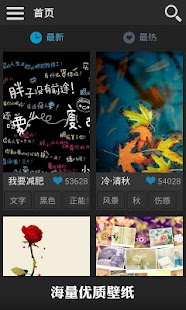

Alive Wallpaper Current Version: 2.1.10
Requires Android: 2.1 and up
Category: Personalization
v2.1.10 update:
Version 1.7 improvements list
1 search support
2 Improved algorithm automatically change wallpaper, change wallpaper automatically fail to solve the problem
3 additions to the library in my wallpaper settings automatically change wallpaper quickly
4 Fix important bug: cause the phone to automatically change wallpaper wallpaper does not display properly after restart
5 new wallpaper in the library when removed wallpaper Select Delete function
Subscribe to:
Posts (Atom)