Showing posts with label your. Show all posts
Showing posts with label your. Show all posts
Monday, April 6, 2015
Samsung Galaxy S4 gets leaked KitKat firmware How To Install it on your S4

A test was performed with Android 4.4.2 KitKat firmware on international version of Sasmung Galaxy S4 : GT-I9505 with Octa-Core Snapdragon 600 chipset.
The firmware is an open release for European Samsung Galaxy S4 users and is said that the ROM is highly functionable and quite stable with just few minor bugs.
SamMobile says "so far it’s been pretty stable, except a few minor hiccups here and there" but this is okay because it isnt a final release or a customer release, just a firmware for testing whether its working correctly or not.
Finally Samsung has moved from Green icons to white icons, which are basically stock icons of Google Android 4.4.2 KK OS, so theres nothing customized thing in the statusbar icons. There are some tweaks to the user interface. Also there is a transparent Notificatio bar, which looks cool but nothing done by Samsung here, just tweaked by Google in KitKat update. But, sadly, the interior of notification bar remains same as of Android 4.3 Jelly Bean update for Samsung Galaxy S4, I dont know why Samsung makes their user feels not upgraded because the UI is same! When Googles Nexuses receives updates, they always looks fresh and updated after updating the system by OTA.
Another thing that we noticed was the camera icon. The camera icon is now in the lower right side of the Lockcreen which looks like Facebook messengers popup messages. It allows users to access the camera application as soon as possible when they need it.
According to Sam Mobiles, the performance has been significantly improved of Samsung Galaxy S4 with this Android 4.4 Kit Kat build. Also Sam Mobiles reported that the UI is pretty stable with no lags on changing the device orientations. Further, they also said that the Benchmarks of this device seems to be bump up and are better than Android 4.3 Jelly Bean.
So you can install the ROM too, here you go:
Note: MXRootRom is not responsible for your bricked Samsung Galaxy S4, if you are an experienced user, then try it at your own risk, other users may also try but on their own risk. If you are feeling insecure, then wait for official release of KK for Samsung Galaxy S4!
How To Install/Flash Android 4.4 KitKat firmware by Samsung by Kies:
- Download the Firmware given in the link.
- Extract the firmware with any file extractor like WinRar or WinZip.
- Download and extract the Odin v3.09 too.
- Shut down the device and keep it untouched for some time.
- Now, press and hold Home + Power + Volume down buttons simultaneously to boot into Download Mode.
- Open the Odin on your PC and connect your PC while pressing those buttons. When you will see blue sign on Odin (the sign means that the device is successfully connected and the drivers are also installed) it means you are ready for the next step.
- In the AP section, add I9505XXUFNA1_I9505OXAFNA1_I9505XXUFNA1_HOME.tar.md5 file from the folder in which you extracted some files just now.
- Before moving to the next step, make sure RE-Formatting is not ticked in Odin.
- Click on the big Start button and have some coffee.
- Soon it will boot into Android 4.4 KitKat!
- If you have encourted some errors like Bootloop (Stuck in the Android booting) or any error while flashing then reboot to recovery and choose wipe/factory reset option to reset your internal SD Card and Android software.
- Reboot!
Downloads
- I9505XXUFNA1_I9505OXAFNA1_I9505XXUFNA1_OXA.zip (or simply Android 4.4 KitKat Stock Firmware for Samsung Galaxy S4): Click here.
- Odin v3.09: Click HERE.
Model: GT-I9505
Country: Open Europe
Version: Android 4.4.2
Changelist: 276328
Build date: Thu, 2 Jan 2014 23:30:51 +0000
Product Code: OXA
PDA: I9505XXUFNA1
CSC: I9505OXAFNA1
MODEM: I9505XXUFNA1
Screenshots of this ROM/Firmware:
|
| Add caption |

Sunday, April 5, 2015
OnBeat Solar Headphones charge your phone in the sun
Phone battery always dying on you? The OnBeat Solar Headphones could be the perfect solution to your smartphone woes.

A UK-based Kickstarter campaign is trying to raise funds for a pair of solar-powered headphones that can charge smartphones and tablets in the sun.
The OnBeat Solar Headphones work via a flexible solar panel that covers the entire headband to soak up the rays. This channels the solar energy to a pair of Lithium ion batteries located inside the ear cups.
When its not sunny outside, theres also a USB connection so you can hook your tablet or smartphone and charge it via a PC.
OnBeat claims that the headphones will provide a full battery recharge for a mobile phone however the company fails to provide evidence of the charging performance for specific devices.
In terms of the standard headphone specs, the OnBeat headphones feature 40mm drivers, have a frequency response of 20hz to 20,000Khz and include an integrated remote to control the volume.
OnBeat is searching for £200,000 and with 29 days to go has reached just under £8,000. At the bottom of the pledging scale if you give £5 you can get a mention on the website. If you chip in £89 or more you’ll get a pair of the headphones sent to you if they successfuly launch.
The headphones will end up costing around £119 and an estimated delivery date of February 2014 suggests you will have to wait until next year to see the first pair. You can find out more on the OnBeat Solar headphones Kickstarter page.
Read more »
A UK-based Kickstarter campaign is trying to raise funds for a pair of solar-powered headphones that can charge smartphones and tablets in the sun.
The OnBeat Solar Headphones work via a flexible solar panel that covers the entire headband to soak up the rays. This channels the solar energy to a pair of Lithium ion batteries located inside the ear cups.
When its not sunny outside, theres also a USB connection so you can hook your tablet or smartphone and charge it via a PC.
OnBeat claims that the headphones will provide a full battery recharge for a mobile phone however the company fails to provide evidence of the charging performance for specific devices.
In terms of the standard headphone specs, the OnBeat headphones feature 40mm drivers, have a frequency response of 20hz to 20,000Khz and include an integrated remote to control the volume.
OnBeat is searching for £200,000 and with 29 days to go has reached just under £8,000. At the bottom of the pledging scale if you give £5 you can get a mention on the website. If you chip in £89 or more you’ll get a pair of the headphones sent to you if they successfuly launch.
The headphones will end up costing around £119 and an estimated delivery date of February 2014 suggests you will have to wait until next year to see the first pair. You can find out more on the OnBeat Solar headphones Kickstarter page.
Saturday, April 4, 2015
Apple may stop iPhone 5S Touch ID forgetting your fingers
Not long ago, a number of iPhone 5S users were complaining of a "fade" issue with the iPhone 5S Touch ID scanner, causing it to forget your fingerprints over time.

Now a source "familiar with Apples development plans" has said that the company is preparing to release a software update that could fix the problem.
The source, speaking to Appleinsider, said that Apple is aware of the problem experienced by early adopters of the 5S, and will release a free software update "relatively soon".
Its unclear whether this will be part of iOS 7.1, which is expected to arrive mid-March, or its own standalone update.
Users who have experienced "fade" have temporary fixed the problem by reconfiguring their prints, however its only taken weeks for the problem to appear again.
Read more »
Now a source "familiar with Apples development plans" has said that the company is preparing to release a software update that could fix the problem.
The source, speaking to Appleinsider, said that Apple is aware of the problem experienced by early adopters of the 5S, and will release a free software update "relatively soon".
Give it the finger
Its unclear whether this will be part of iOS 7.1, which is expected to arrive mid-March, or its own standalone update.
Users who have experienced "fade" have temporary fixed the problem by reconfiguring their prints, however its only taken weeks for the problem to appear again.
Smartphones tips and tricks Tablets tips and tricks Smartphones reviews
Smartphones rooting Tablets reviews News from mobile world
Smartphones rooting Tablets reviews News from mobile world
Friday, April 3, 2015
Install Linux on your x86 tablet five distros to choose from
We live in a world where the tablet or smart device dominates - both on the high Street and online. Instead of people going out at Christmas to buy a shiny new laptop, they opted for one of the many 10-inch tablets that appear to be everywhere at the moment.

Its funny really - 15 years ago the only tablet device was Captain Jean-Luc Picards DataPad on the Enterprise: the old axiom of science fiction becoming science fact has never been more true.
Were now almost midway through 2013 and the tablet is still growing, in numbers and in strength, and regardless of whether its an Android or Apple device. So, as the old saying goes, if you cant beat them, join them.
We had a clever idea (which just proves that it does happen now and then): why not get hold of an x86 tablet, and install Linux on it? After all, if its x86-based then we can install pretty much anything on it, right? So, heres our roundup of tablet-ready distros.
We managed to get our hands on a rather nice Acer Iconia W500, with a dual core 1GHz AMD-C50 CPU, 2GB DDR3 RAM, a 1280 x 800 10.1-inch WXGA capacitive screen, an AMD Radeon GMA 6250 and a 32GB SSD. It all comes with Bluetooth, Wi-Fi, dual cameras (front and rear), USB ports and MicroSD - so in essence its not a bad little bit of kit.
In addition, theres also the accelerometer function which, among other things, allows the tablet to flip the screen when it is turned on its side.
We wanted an all-out distro to satisfy the needs of every function the tablet has to offer, preferably straight out of the box, so we picked five recent releases - Ubuntu, Android x86, Fedora, Kubuntu Active and OpenSUSE - and put them through their paces, as either a live USB, or installed, to see just how far we could go with this interesting little endeavour.
Were fairly sure you dont need to be told how to install a Linux distro - most now use an identifiable and easy-to-navigate installer - but we thought it would be interesting to see how well they coped, first as a live image, via a bootable USB, then secondly as a fully installed OS.
Ubuntu doesnt need much introduction. Its the most popular Linux distro and you probably already know that Canonical is releasing an Ubuntu for smartphones, so the latest edition of its desktop OS seems like a pretty good place to start.
The boot up into a live session went well, as did installation onto the Iconias SSD. Wi-Fi, Bluetooth, both sets of cameras, the touchscreen and sound all worked out of the box. Unfortunately there was no onscreen keyboard access when we tapped in a text box, but we solved this by fiddling with the Onboard settings (opened from the Dash) and the keyboard then appeared when we started typing.
The x86 Android port wouldnt install (it kept rebooting the Iconia), but the live session went very well. Everything worked, including the flip-screen, but there wasnt an onscreen keyboard, so we had to plug in a wireless version. Within minutes, though, we were logged in and playing games.
Kubuntu Active was the first of the Plasma Active environments, and although it looked impressive, not much worked in the live environment. The installation went pretty smoothly - everything worked apart from the flip-screen - but after less than a minute it ground to a halt. The same thing happened after a reboot.
Fedora 18 runs Gnome 3.6.3, which in some ways makes the touchscreen look and behave better than earlier versions of Gnome. The hot corner is easily activated, scrolling is as good as anything Android has to offer, and the program icons are big enough to launch without hitting everything else around them. Sound, Wi-Fi, Bluetooth and the cameras worked out of the box, and we could activate the built-in onscreen keyboard by touching the Accessibility icon on the top of the desktop (it also appears when you tap in a text box).
The live session of OpenSUSE 12.2 KDE worked perfectly, with the usual hardware running out of the box. The touchscreen, although it responded, didnt rotate, but when we selected the TabletPC installation pattern, after installing to the SSD from Yast, it opened up a whole new level of usability for Linux. The multi-touch capabilities of the touchscreen worked, as did the rotation, and when we tapped inside a text box the default virtual keyboard launched and we were able to use the tablet as well as any Android or Windows 8 version.
Verdict
Ubuntu - 4/5
Android x86 - 3/5
Fedora - 4/5
Kubuntu Active - 3/5
OpenSUSE - 5/5
This is a bit of a difficult test to judge - full desktop distros create a complete package of default software - however, there are differences. Again, we dont need to say too much about Ubuntu: you get what you get and we all know what that entails.
Kubuntu surprised us most here: we imagined that the Kubuntu Active image would be fairly sparse, concentrating its size on the Plasma Active stuff, but we were pleasantly surprised to be proved wrong.
Kubuntu comes packaged with the Calligra Suite, and with Krita and Kexi for images and database use.
It was a far bleaker picture with regards to Android x86s default software. There were a few games, a video player and a picture manager, but other than the usual settings, maps, Gmail and so on, it was little more than a development testbed.
As you would expect, Fedora and OpenSUSE were as jam-packed as Ubuntu, which made the tablet a more useful device out-of-the-box. However, we came across an issue with Fedora: whenever we opened Writer it crashed almost instantly, as did Impress. We reinstalled a few times, but it still didnt work. In all fairness, though, it could have been an issue with our install, as both tools worked fine when used in a Live USB environment.
Verdict
Ubuntu - 5/5
Android x86 - 3/5
Fedora - 4/5
Kubuntu Active - 5/5
OpenSUSE - 5/5
Tablets look flash, sleek and shiny. They come with cool animation and eye-catching icons. Whether they work or not is another matter - they look nice.
Installing desktop distros on our x86 tablet gives us the wealth of good looks, gadgets and widgets that you find on any flashy PC, but they still need to work on our lesser-powered tablet. As with most systems where graphical splendour outweighs functionality, theres a trade-off.
So although we wanted our distros to look good, we also didnt want to stretch the tablets resources so far that the device became unusable. With a bit of work, we managed to find a balance so we could give each of the five distros a good run for its money.
Unity still has most peoples backs up, doesnt it? We added LiveWallpaper from launchpad.net/livewallpaper and enjoyed a nice swirling galaxy effect on our tablet. This gave us a very high looks rating but it did make the system crawl.
Other environments can be installed, but in all fairness to Unity, despite the animosity it receives, it worked very well indeed and it doesnt look all that bad. The usability of Ubuntu, and consequently Unity, on the tablet is perfectly adequate. With a little tweaking you can get the on-screen keyboard up, and theres nothing to stop you from having it as the full-time OS on an x86 tablet.
Android x86 is not as well covered as the ARM version, obviously - it is just a port after all. And before we get into the whole Android isnt Linux debate, its worth mentioning that in this instance we regard it as such and since it is the most popular tablet OS, wed be remiss in our duties if we didnt include it.
When it comes to appearances, Android did the job nicely. The available wallpapers stood out, the icons for the apps and the widgets looked the part, but we couldnt get the live wallpapers to work - they just seemed to stop the tablet dead.
The number of apps available in Android is enormous - for the ARM version. For our version, the x86 project, applications were sparse; what was available had a nasty habit of crashing everything but the core installed apps worked okay.
Fedoras use of Gnome 3.x prompted about as much animosity as Unity, but its weaknesses on the desktop could be strengths on the tablet. Gnome 3 looks really nice - we didnt even bother with anything as fancy as live wallpaper. The animations, such as the hot corner, were smooth and fluid, the scrolling looked great and the icons were nicely animated.
If you ever fancy giving it a go on another distro, Gnome 3 is a very nice looking tablet environment. As far as usability goes, Fedora is as good as you would expect a desktop distro with this many years of service to be. The only issue we have with it is the awful installation process.
Weve already said how surprised we were with Kubuntu Active and its Plasma Active environment. In this instance, we used Kubuntu Active 12.10, which uses - as far as we know - Plasma Active 2. Although its basically a joint project by the KDE team, its appearance differs significantly.
Its intended for use on tablets and smartphones, so its hardly surprising that it looks really nice, especially with the Peek&Launch bar and the Plasma Widgets. When it comes to usability, once you get over the initial boot into the live environment (which starts off slow but then fires up to speed), and once the grinding to a halt issue is fixed (we installed a new image), the OS really opens up, becoming one of the best examples of a touchscreen system that weve used. A grand claim, maybe, but a well-deserved one.
You could regard OpenSUSE KDE as the poorer cousin of the Plasma Active environment - what with Active being the new kid on the block, as it were. But while it may not look the most tablet friendly, it makes up for that when it comes to usability.
OpenSUSE 12.2 is a great OS on the desktop, but when used on the tablet, and especially after using the Plasma Active environment from Kubuntu, it and KDE look a little worn. Its true that you can customise it significantly, and introduce a more tablet look, but Start buttons will soon be endangered species. Its usability, however, is wonderful and, as we mentioned right at the start, installing the TabletPC pattern really makes the operating system come to life.
Its actually quite a good question. Ease of use perhaps? The ability to simply pick them up and surf the web? Maybe its the wealth of free apps that are now available?
We think its more to do with the features that a tablet offers. Features such as handheld connectivity, GPS location functions and the ability to turn the device on its side and use it as an eBook reader.
The screen rotation in Ubuntu was a little problematic at first, but after following these instructions we managed to get it working properly and it became nice eReader; likewise for the media and connectivity.
With Bluetooth, HDMI and two USB ports it was easy to watch movies and play games.
The same can also be said for OpenSUSE after you have installed the TabletPC pattern, as that too adds the screen rotation function.
Kubuntu, sadly, was a different matter. The fix for the screen rotation didnt work, and for some reason the video output via HDMI was so distorted that we couldnt read it. In tablet mode the screen was fine.
Android x86s screen rotation worked perfectly adequately, but the USB ports and HDMI didnt. Fedoras fix for screen rotation actually killed the installation. Other than that, though, everything else worked as expected.
Verdict
Ubuntu - 5/5
Android x86 - 2/5
Fedora - 3/5
Kubuntu Active - 4/5
OpenSUSE - 5/5
When we use the different desktop environments on a PC, they work as they should, even if we dont like them. On a tablet, though, we use swiping, tapping and pinching to navigate the desktop and if those dont work properly, it can be incredibly frustrating to carry out even simple tasks.
Unity, although tablet-orientated, soon got our backs up when we realised the effort required to simply close, minimise or resize open windows. It made up for it - partially - with swipes from the side bringing up the Unity Launch Bar. Switching between apps on the Android x86 desktop wasnt a problem, but it suffered from some particularly strange behaviour every now and then: some apps randomly closed and others launched, seemingly of their own accord.
Fedora and Kubuntu were an absolute joy to use: tapping, swiping and other tablet gestures made Gnome 3 and Plasma Active the best desktop environments we tested, despite the lack of screen rotation.
Poor old OpenSUSE proved to be a bit of a chore when it came to the Start button, however if you took the time to create an icon for the app, then a simple tap was all that was needed. Its worth mentioning again that OpenSUSE is dramatically improved with the TabletPC pattern installed. Once that fix has been added it becomes one of the best desktops for use on a tablet.
Verdict
Ubuntu - 4/5
Android x86 - 3/5
Fedora - 5/5
Kubuntu Active - 5/5
OpenSUSE - 5/5
Trying out various distros on an x86 tablet is certainly good fun. As far as this project goes, though, weve only been using each distro for a set amount of time before moving on to the next. But what about long-term? Which of the five distributions tested here would be best for everyday use?
We thought long and hard about this section, because it depends on what you will be doing with your tablet. We eventually narrowed down everyday use to the following: catching up with work emails on the daily commute; writing documents; playing the occasional game - nothing too strenuous; surfing the web and checking Facebook/Twitter; video calling; and using it as an eBook reader and media playback device.
Ubuntu kicks off with its usual default programs. Firefox, LibreOffice and games via the Software Centre all worked as they should, providing us with the basics. For video calling we installed Skype 4.1 for Linux, which worked well enough, along with FBReader for eBooks (after screen rotation was fixed), and VLC and the various codecs for media playback.
Fedora and Kubuntu worked with the basics, except Skype kept crashing under Kubuntu, and the lack of screen rotation on both distros was an issue when it came to reading eBooks.
Android x86 was pretty useless as an everyday-use tablet OS. There were no working word processors, and the web browser didnt even launch. Games were okay, but media also failed and again, no kind of video messaging. Anything we did find either didnt work, or froze the tablet.
OpenSUSE turned out to be the most useful. Everything worked perfectly: LibreOffice, Firefox and a few games were all up and running. Skype was also easily added via the RPM from Skype.com and again we used FBReader for OpenSUSE. The added benefits you get from the TabletPC pattern is the only reason OpenSUSE beats Ubuntu here - the gestures really help the OS to work properly.
Whats more, although OpenSUSE took slightly longer to boot than Ubuntu, it was faster attaching to Wi-Fi points, starting-up from sleep and it lasted longer on a full charge, making it the ideal long-term option.
Verdict
Ubuntu - 5/5
Android x86 - 1/5
Fedora - 3/5
Kubuntu Active - 3/5
OpenSUSE - 5/5
Canonical is hoping to take over the mobile world in a few months time - and from what weve seen so far of Ubuntu Touch, its dreams could become a reality. And other distros are following suit, developing their latest, or soon-to-be released, versions for the tablet and mobile world. So, what do the developers have in store for our five distros?
The Android x86 project is going from strength to strength but theres lots to do still before its fully integrated with the ARM versions.
Fedora 19 (Schrödingers Cat) promises to offer an improved tablet-centric experience in the form of more support for a multi-touch screen via the kernel, and better-designed packages for tablet users - so waiting for Fedora 19 might be a better idea than starting with Fedora 18.
Plasma Active, under Kubuntu, is moving along steadily. More OpenGL usage is on the horizon, and Plasma Active 5, based on KDE Frameworks 5, is going to be pretty special this year. In fact, 2013 is looking rather tasty for Plasma Active, but theres still a lot of work left to do.
OpenSUSE is continually under development, but there arent any specific plans for a tablet version. Obviously the excellent TabletPC pattern will be developed further, but it wont be integrated into the core OS. Were not quite sure what the future holds for this distro - and those who do are keeping the details pretty close to their chests.
Verdict
Ubuntu - 5/5
Android x86 - 3/5
Fedora - 4/5
Kubuntu Active - 3/5
OpenSUSE - 2/5
Compiling this roundup gave us quite an insight into the world of x86 tablets. Increasingly, theyre looking like the long-forgotten, poor relations to the more successful ARM-based versions. Its a great shame really, as the potential for an x86 tablet is far better, in our view, than that of an ARM one.
For starters, theres a long history of developed software for x86 - the various tweaks, add-ons and extras that personalise our Linux desktops. The x86 tablet just has so much going for it.
Imagine installing the Linux Steam Client on a reasonably powerful i3/5 x86 tablet and getting to grips with the might of decent Linux gaming. Imagine still, your favourite distro, complete with personalised window decorations, heavily customised Conky, and DeviantArt wallpaper. An x86 tablet could be the bees knees, theres little doubt about that.
So, where does that leave us with our selection of x86 tablet distros? Well, Ubuntu came out on top, but only just - OpenSUSE was snapping at its heels. Kubuntu Plasma Active and Fedora 18 Gnome were in third and fourth place, and the Android x86 project brought up the rear in fifth.
As expected, all the distros had their good and bad points. Ubuntu is clearly leading the tablet march with its plans for the future, but at present its still a very desktop-oriented OS.
OpenSUSE came second mainly due to the mighty impressive TabletPC Pattern - without that it would have scored a lot less. Kubuntu Plasma Active is - obviously - designed for the tablet, and it was nice to compare the stock KDE of OpenSUSE with the Plasma Active KDE of Kubuntu, but both still need some work to get anywhere near the market equivalent of Android on ARM-based tablets and smart devices.
Fedora is bending its will towards tablets, and Gnome 3 came as a nice element to the tablet desktop. Look out for Fedora 19 and beyond, though - in the futue we think Fedora will embrace the tablet more than any other distro.
Last but by no means least we have the Android x86 distro. You could say its just a hobbyist project, but theres huge potential here and, with the right backing and development, Android could succeed in taking the x86 world by storm as well.
Web: http://www.ubuntu.com/
Licence: Free
Looks good and works well. Who knows what the future holds…
Score: 5/5
Web: http://www.opensuse.org/en/
Licence: Free
OpenSUSE with its TabletPC pattern came a very close second.
Score: 4/5
Web: http://fedoraproject.org/
Licence: Free
Fedora 19 could be the top x86 tablet OS - well have to wait and see.
Score: 3/5
Web: http://cdimage.ubuntu.com/kubuntu-active/releases/12.10/release/
Licence: Free
Still needs work, but Plasma Active 5 looks like it could be great.
Score: 3/5
Web: http://www.android-x86.org/
Licence: Free
Needs more work before its as good as its cousin for ARM devices.
Score: 2/5
Read more »
Its funny really - 15 years ago the only tablet device was Captain Jean-Luc Picards DataPad on the Enterprise: the old axiom of science fiction becoming science fact has never been more true.
Were now almost midway through 2013 and the tablet is still growing, in numbers and in strength, and regardless of whether its an Android or Apple device. So, as the old saying goes, if you cant beat them, join them.
We had a clever idea (which just proves that it does happen now and then): why not get hold of an x86 tablet, and install Linux on it? After all, if its x86-based then we can install pretty much anything on it, right? So, heres our roundup of tablet-ready distros.
How we tested...
We managed to get our hands on a rather nice Acer Iconia W500, with a dual core 1GHz AMD-C50 CPU, 2GB DDR3 RAM, a 1280 x 800 10.1-inch WXGA capacitive screen, an AMD Radeon GMA 6250 and a 32GB SSD. It all comes with Bluetooth, Wi-Fi, dual cameras (front and rear), USB ports and MicroSD - so in essence its not a bad little bit of kit.
In addition, theres also the accelerometer function which, among other things, allows the tablet to flip the screen when it is turned on its side.
We wanted an all-out distro to satisfy the needs of every function the tablet has to offer, preferably straight out of the box, so we picked five recent releases - Ubuntu, Android x86, Fedora, Kubuntu Active and OpenSUSE - and put them through their paces, as either a live USB, or installed, to see just how far we could go with this interesting little endeavour.
Installation
Did everything actually work?
Were fairly sure you dont need to be told how to install a Linux distro - most now use an identifiable and easy-to-navigate installer - but we thought it would be interesting to see how well they coped, first as a live image, via a bootable USB, then secondly as a fully installed OS.
Ubuntu doesnt need much introduction. Its the most popular Linux distro and you probably already know that Canonical is releasing an Ubuntu for smartphones, so the latest edition of its desktop OS seems like a pretty good place to start.
The boot up into a live session went well, as did installation onto the Iconias SSD. Wi-Fi, Bluetooth, both sets of cameras, the touchscreen and sound all worked out of the box. Unfortunately there was no onscreen keyboard access when we tapped in a text box, but we solved this by fiddling with the Onboard settings (opened from the Dash) and the keyboard then appeared when we started typing.
The x86 Android port wouldnt install (it kept rebooting the Iconia), but the live session went very well. Everything worked, including the flip-screen, but there wasnt an onscreen keyboard, so we had to plug in a wireless version. Within minutes, though, we were logged in and playing games.
Kubuntu Active was the first of the Plasma Active environments, and although it looked impressive, not much worked in the live environment. The installation went pretty smoothly - everything worked apart from the flip-screen - but after less than a minute it ground to a halt. The same thing happened after a reboot.
Fedora 18 runs Gnome 3.6.3, which in some ways makes the touchscreen look and behave better than earlier versions of Gnome. The hot corner is easily activated, scrolling is as good as anything Android has to offer, and the program icons are big enough to launch without hitting everything else around them. Sound, Wi-Fi, Bluetooth and the cameras worked out of the box, and we could activate the built-in onscreen keyboard by touching the Accessibility icon on the top of the desktop (it also appears when you tap in a text box).
The live session of OpenSUSE 12.2 KDE worked perfectly, with the usual hardware running out of the box. The touchscreen, although it responded, didnt rotate, but when we selected the TabletPC installation pattern, after installing to the SSD from Yast, it opened up a whole new level of usability for Linux. The multi-touch capabilities of the touchscreen worked, as did the rotation, and when we tapped inside a text box the default virtual keyboard launched and we were able to use the tablet as well as any Android or Windows 8 version.
Verdict
Ubuntu - 4/5
Android x86 - 3/5
Fedora - 4/5
Kubuntu Active - 3/5
OpenSUSE - 5/5
Default software
What do you get, out of the box?
This is a bit of a difficult test to judge - full desktop distros create a complete package of default software - however, there are differences. Again, we dont need to say too much about Ubuntu: you get what you get and we all know what that entails.
Kubuntu surprised us most here: we imagined that the Kubuntu Active image would be fairly sparse, concentrating its size on the Plasma Active stuff, but we were pleasantly surprised to be proved wrong.
Kubuntu comes packaged with the Calligra Suite, and with Krita and Kexi for images and database use.
It was a far bleaker picture with regards to Android x86s default software. There were a few games, a video player and a picture manager, but other than the usual settings, maps, Gmail and so on, it was little more than a development testbed.
As you would expect, Fedora and OpenSUSE were as jam-packed as Ubuntu, which made the tablet a more useful device out-of-the-box. However, we came across an issue with Fedora: whenever we opened Writer it crashed almost instantly, as did Impress. We reinstalled a few times, but it still didnt work. In all fairness, though, it could have been an issue with our install, as both tools worked fine when used in a Live USB environment.
Verdict
Ubuntu - 5/5
Android x86 - 3/5
Fedora - 4/5
Kubuntu Active - 5/5
OpenSUSE - 5/5
Looks and usability
Lets face it, we all like that sexy tablet look, right?
Tablets look flash, sleek and shiny. They come with cool animation and eye-catching icons. Whether they work or not is another matter - they look nice.
Installing desktop distros on our x86 tablet gives us the wealth of good looks, gadgets and widgets that you find on any flashy PC, but they still need to work on our lesser-powered tablet. As with most systems where graphical splendour outweighs functionality, theres a trade-off.
So although we wanted our distros to look good, we also didnt want to stretch the tablets resources so far that the device became unusable. With a bit of work, we managed to find a balance so we could give each of the five distros a good run for its money.
Ubuntu - 4/5
Unity still has most peoples backs up, doesnt it? We added LiveWallpaper from launchpad.net/livewallpaper and enjoyed a nice swirling galaxy effect on our tablet. This gave us a very high looks rating but it did make the system crawl.
Other environments can be installed, but in all fairness to Unity, despite the animosity it receives, it worked very well indeed and it doesnt look all that bad. The usability of Ubuntu, and consequently Unity, on the tablet is perfectly adequate. With a little tweaking you can get the on-screen keyboard up, and theres nothing to stop you from having it as the full-time OS on an x86 tablet.
Android x86 - 3/5
Android x86 is not as well covered as the ARM version, obviously - it is just a port after all. And before we get into the whole Android isnt Linux debate, its worth mentioning that in this instance we regard it as such and since it is the most popular tablet OS, wed be remiss in our duties if we didnt include it.
When it comes to appearances, Android did the job nicely. The available wallpapers stood out, the icons for the apps and the widgets looked the part, but we couldnt get the live wallpapers to work - they just seemed to stop the tablet dead.
The number of apps available in Android is enormous - for the ARM version. For our version, the x86 project, applications were sparse; what was available had a nasty habit of crashing everything but the core installed apps worked okay.
Fedora 18 Gnome - 4/5
Fedoras use of Gnome 3.x prompted about as much animosity as Unity, but its weaknesses on the desktop could be strengths on the tablet. Gnome 3 looks really nice - we didnt even bother with anything as fancy as live wallpaper. The animations, such as the hot corner, were smooth and fluid, the scrolling looked great and the icons were nicely animated.
If you ever fancy giving it a go on another distro, Gnome 3 is a very nice looking tablet environment. As far as usability goes, Fedora is as good as you would expect a desktop distro with this many years of service to be. The only issue we have with it is the awful installation process.
Kubuntu Active - 5/5
Weve already said how surprised we were with Kubuntu Active and its Plasma Active environment. In this instance, we used Kubuntu Active 12.10, which uses - as far as we know - Plasma Active 2. Although its basically a joint project by the KDE team, its appearance differs significantly.
Its intended for use on tablets and smartphones, so its hardly surprising that it looks really nice, especially with the Peek&Launch bar and the Plasma Widgets. When it comes to usability, once you get over the initial boot into the live environment (which starts off slow but then fires up to speed), and once the grinding to a halt issue is fixed (we installed a new image), the OS really opens up, becoming one of the best examples of a touchscreen system that weve used. A grand claim, maybe, but a well-deserved one.
OpenSUSE 12.2 KDE - 4/5
You could regard OpenSUSE KDE as the poorer cousin of the Plasma Active environment - what with Active being the new kid on the block, as it were. But while it may not look the most tablet friendly, it makes up for that when it comes to usability.
OpenSUSE 12.2 is a great OS on the desktop, but when used on the tablet, and especially after using the Plasma Active environment from Kubuntu, it and KDE look a little worn. Its true that you can customise it significantly, and introduce a more tablet look, but Start buttons will soon be endangered species. Its usability, however, is wonderful and, as we mentioned right at the start, installing the TabletPC pattern really makes the operating system come to life.
Tablet features
Screen rotation and handheld connectivity? What makes tablets so popular?
Its actually quite a good question. Ease of use perhaps? The ability to simply pick them up and surf the web? Maybe its the wealth of free apps that are now available?
We think its more to do with the features that a tablet offers. Features such as handheld connectivity, GPS location functions and the ability to turn the device on its side and use it as an eBook reader.
The screen rotation in Ubuntu was a little problematic at first, but after following these instructions we managed to get it working properly and it became nice eReader; likewise for the media and connectivity.
With Bluetooth, HDMI and two USB ports it was easy to watch movies and play games.
The same can also be said for OpenSUSE after you have installed the TabletPC pattern, as that too adds the screen rotation function.
Kubuntu, sadly, was a different matter. The fix for the screen rotation didnt work, and for some reason the video output via HDMI was so distorted that we couldnt read it. In tablet mode the screen was fine.
Android x86s screen rotation worked perfectly adequately, but the USB ports and HDMI didnt. Fedoras fix for screen rotation actually killed the installation. Other than that, though, everything else worked as expected.
Verdict
Ubuntu - 5/5
Android x86 - 2/5
Fedora - 3/5
Kubuntu Active - 4/5
OpenSUSE - 5/5
Gnome vs KDE vs Unity
Which desktop environment works best on a tablet?
When we use the different desktop environments on a PC, they work as they should, even if we dont like them. On a tablet, though, we use swiping, tapping and pinching to navigate the desktop and if those dont work properly, it can be incredibly frustrating to carry out even simple tasks.
Unity, although tablet-orientated, soon got our backs up when we realised the effort required to simply close, minimise or resize open windows. It made up for it - partially - with swipes from the side bringing up the Unity Launch Bar. Switching between apps on the Android x86 desktop wasnt a problem, but it suffered from some particularly strange behaviour every now and then: some apps randomly closed and others launched, seemingly of their own accord.
Fedora and Kubuntu were an absolute joy to use: tapping, swiping and other tablet gestures made Gnome 3 and Plasma Active the best desktop environments we tested, despite the lack of screen rotation.
Poor old OpenSUSE proved to be a bit of a chore when it came to the Start button, however if you took the time to create an icon for the app, then a simple tap was all that was needed. Its worth mentioning again that OpenSUSE is dramatically improved with the TabletPC pattern installed. Once that fix has been added it becomes one of the best desktops for use on a tablet.
Verdict
Ubuntu - 4/5
Android x86 - 3/5
Fedora - 5/5
Kubuntu Active - 5/5
OpenSUSE - 5/5
Day-to-day use
How do the distros cope with everyday tasks?
Trying out various distros on an x86 tablet is certainly good fun. As far as this project goes, though, weve only been using each distro for a set amount of time before moving on to the next. But what about long-term? Which of the five distributions tested here would be best for everyday use?
We thought long and hard about this section, because it depends on what you will be doing with your tablet. We eventually narrowed down everyday use to the following: catching up with work emails on the daily commute; writing documents; playing the occasional game - nothing too strenuous; surfing the web and checking Facebook/Twitter; video calling; and using it as an eBook reader and media playback device.
Ubuntu kicks off with its usual default programs. Firefox, LibreOffice and games via the Software Centre all worked as they should, providing us with the basics. For video calling we installed Skype 4.1 for Linux, which worked well enough, along with FBReader for eBooks (after screen rotation was fixed), and VLC and the various codecs for media playback.
Fedora and Kubuntu worked with the basics, except Skype kept crashing under Kubuntu, and the lack of screen rotation on both distros was an issue when it came to reading eBooks.
Android x86 was pretty useless as an everyday-use tablet OS. There were no working word processors, and the web browser didnt even launch. Games were okay, but media also failed and again, no kind of video messaging. Anything we did find either didnt work, or froze the tablet.
OpenSUSE turned out to be the most useful. Everything worked perfectly: LibreOffice, Firefox and a few games were all up and running. Skype was also easily added via the RPM from Skype.com and again we used FBReader for OpenSUSE. The added benefits you get from the TabletPC pattern is the only reason OpenSUSE beats Ubuntu here - the gestures really help the OS to work properly.
Whats more, although OpenSUSE took slightly longer to boot than Ubuntu, it was faster attaching to Wi-Fi points, starting-up from sleep and it lasted longer on a full charge, making it the ideal long-term option.
Verdict
Ubuntu - 5/5
Android x86 - 1/5
Fedora - 3/5
Kubuntu Active - 3/5
OpenSUSE - 5/5
The future
Crystal balls at the ready…
Canonical is hoping to take over the mobile world in a few months time - and from what weve seen so far of Ubuntu Touch, its dreams could become a reality. And other distros are following suit, developing their latest, or soon-to-be released, versions for the tablet and mobile world. So, what do the developers have in store for our five distros?
The Android x86 project is going from strength to strength but theres lots to do still before its fully integrated with the ARM versions.
Fedora 19 (Schrödingers Cat) promises to offer an improved tablet-centric experience in the form of more support for a multi-touch screen via the kernel, and better-designed packages for tablet users - so waiting for Fedora 19 might be a better idea than starting with Fedora 18.
Plasma Active, under Kubuntu, is moving along steadily. More OpenGL usage is on the horizon, and Plasma Active 5, based on KDE Frameworks 5, is going to be pretty special this year. In fact, 2013 is looking rather tasty for Plasma Active, but theres still a lot of work left to do.
OpenSUSE is continually under development, but there arent any specific plans for a tablet version. Obviously the excellent TabletPC pattern will be developed further, but it wont be integrated into the core OS. Were not quite sure what the future holds for this distro - and those who do are keeping the details pretty close to their chests.
Verdict
Ubuntu - 5/5
Android x86 - 3/5
Fedora - 4/5
Kubuntu Active - 3/5
OpenSUSE - 2/5
The verdict
Compiling this roundup gave us quite an insight into the world of x86 tablets. Increasingly, theyre looking like the long-forgotten, poor relations to the more successful ARM-based versions. Its a great shame really, as the potential for an x86 tablet is far better, in our view, than that of an ARM one.
For starters, theres a long history of developed software for x86 - the various tweaks, add-ons and extras that personalise our Linux desktops. The x86 tablet just has so much going for it.
Imagine installing the Linux Steam Client on a reasonably powerful i3/5 x86 tablet and getting to grips with the might of decent Linux gaming. Imagine still, your favourite distro, complete with personalised window decorations, heavily customised Conky, and DeviantArt wallpaper. An x86 tablet could be the bees knees, theres little doubt about that.
So, where does that leave us with our selection of x86 tablet distros? Well, Ubuntu came out on top, but only just - OpenSUSE was snapping at its heels. Kubuntu Plasma Active and Fedora 18 Gnome were in third and fourth place, and the Android x86 project brought up the rear in fifth.
Tablet top
As expected, all the distros had their good and bad points. Ubuntu is clearly leading the tablet march with its plans for the future, but at present its still a very desktop-oriented OS.
OpenSUSE came second mainly due to the mighty impressive TabletPC Pattern - without that it would have scored a lot less. Kubuntu Plasma Active is - obviously - designed for the tablet, and it was nice to compare the stock KDE of OpenSUSE with the Plasma Active KDE of Kubuntu, but both still need some work to get anywhere near the market equivalent of Android on ARM-based tablets and smart devices.
Fedora is bending its will towards tablets, and Gnome 3 came as a nice element to the tablet desktop. Look out for Fedora 19 and beyond, though - in the futue we think Fedora will embrace the tablet more than any other distro.
Last but by no means least we have the Android x86 distro. You could say its just a hobbyist project, but theres huge potential here and, with the right backing and development, Android could succeed in taking the x86 world by storm as well.
1st place: Ubuntu 12.10
Web: http://www.ubuntu.com/
Licence: Free
Looks good and works well. Who knows what the future holds…
Score: 5/5
2nd place: OpenSUSE 12.2 KDE
Web: http://www.opensuse.org/en/
Licence: Free
OpenSUSE with its TabletPC pattern came a very close second.
Score: 4/5
3rd place: Fedora 18 Gnome
Web: http://fedoraproject.org/
Licence: Free
Fedora 19 could be the top x86 tablet OS - well have to wait and see.
Score: 3/5
4th place: Kubuntu Active
Web: http://cdimage.ubuntu.com/kubuntu-active/releases/12.10/release/
Licence: Free
Still needs work, but Plasma Active 5 looks like it could be great.
Score: 3/5
5th place: Android x86
Web: http://www.android-x86.org/
Licence: Free
Needs more work before its as good as its cousin for ARM devices.
Score: 2/5
How to free up space on your iOS device
Computers used to be all about expandability. Essentially you owned a box that could be tailored to your needs as your requirements evolved. A popular upgrade path was storage, adding new hard drives as your files grew in size and number. But with Apples touchscreen revolution, everything changed.

The iPhone, iPad and iPod touch are more like appliances than traditional computers - theyre sealed boxes that forever remain as they were the moment you purchased them. You can no more extend their storage capabilities than you can add a new compartment to your fridge-freezer.
A quick look at Apples modern hardware suggests its entire line-up is heading in the same direction, but iOS devices are more restricted than Apples desktops and notebooks. After all, if you need more storage for a MacBook Air, you at least have the option of offloading large documents to an external hard drive (and, of course, then sensibly backing up that data along with the internal drives, either locally or to an online service such as CrashPlan).
But iOS devices arent designed that way. They dont have a USB port or a user-accessible file structure. The intention is that you store everything on the device itself (well, almost everything - services like iTunes Match enable you to grab your music from the cloud).
Therefore, an important tip when it comes to better iOS device storage and management comes at the moment of purchase: buy the model with the most storage that you can afford, unless youre absolutely convinced you wont need it.
Even then, reconsider; be mindful that as technology evolves, demands for storage increase. Retina screens require larger applications, and iOS cameras can shoot HD video, which requires a huge amount of space.
Also, demands on iOS devices are increasing purely on the basis of what they can now do. People frequently shoot and edit video, work with photography, read magazines and compose music on iPads and iPhones. All these things require lots of storage.
If your device gets really full, it alerts you. Also, things stop working. You wont be able to install new apps or shoot video new footage. You may find that updating apps becomes problematic, because the device doesnt have enough space to download, unpack and install updates before deleting older versions.
We offer advice for dealing with such a situation, along with managing iOS storage in general. Note that this isnt intended as a start-to-finish walkthrough, more a series of ideas that can be utilised to free up space.
As ever, we should stress the importance of back-ups before making major changes to iOS devices. Even if youre backing up to iCloud, make the occasional local back-up (select your device in iTunes and click Back Up Now on the Summary page).
Local backups are also useful when it comes to dealing with app data, because you can later use iExplorer to fish out settings and other documents from such a backup, even if those things have long been removed from your device. Also ensure before making any major changes in terms of deleting content that you dont only have said content on your iOS device.
For music, sync your device with iTunes to transfer tracks to your Mac (although you can grab previous purchases from iTunes, if necessary). For photos and movies, transfer them across by attaching your device to your Mac via USB, launching iPhoto, selecting the device and clicking the Import button.
If storage is an issue, you could free some up. For example, if youve lots of music or photos on your device, select the relevant tab, uncheck the sync box and then sync your device. The relevant media is removed. You can then perform updates and manage your apps, perhaps free up more space, and later restore your media by resyncing it.
Occasionally, you might find the other section becomes massive. In our experience, this is usually down to you having a lot of in-app data (see Step 3) or failed app updates, which can happen on trying to update without enough free space. Resyncing should help; if not, a restore from a local backup.
In iTunes, check app sizes by clicking on the Apps tab and selecting Sort by Size from the pop-up menu at the top of the apps list. Peruse the list, and if there are apps or games you no longer use, consider deleting them. You can do so by clicking Remove in iTunes; when youve done so for all apps youd like to delete, click Sync.
Alternatively, tap-hold an app on your device to make all the icons jiggle and, for each, tap the cross icon and then Delete to remove it.
Newsstand and similar apps tend to be storage-hungry. Their containers might be small, but the actual magazines rarely are. If you want to see how much space an apps data is using, tap the app in the list and look at the Documents & Data figure.
If youve several such apps taking up loads of room you need, consider deleting data. For example, if you subscribe to magazines, delete old issues from within each app. You can usually redownload issues later if you need to. If you fancy taking a speedy option and dont have a capped broadband connection, deleting a Newsstand app takes all its data with it. You can then download a fresh copy from the App Store and the latest issue.
Magazine and book apps arent the only storage culprits, note. Dropbox can (optionally) store documents locally (by flagging them as favourites) and some video apps have download capability, so check those too.
Connect your device to your Mac via USB, select Apps from iExplorers sidebar and select the app in question. Select the Documents and Library folders, Ctrl-click and select Export to Folder. (Alternatively drag them to a Finder folder.)
The contents of these folders can later be sideloaded into a fresh install of the app, meaning you wont lose your progress in a game that doesnt support iCloud, or could get saved compositions from a music-app back to your device with a minimum of fuss.
(Note: if you dont download apps to iTunes on your Mac, sync with it before deleting the apps, so youve a back-up you can later install to your device. You can of course redownload apps from the App Store, but only if they are still made available to you.)
This is a fairly ruthless app-management method, but its useful for keeping installs current and ensuring you have space.
Read more »
The iPhone, iPad and iPod touch are more like appliances than traditional computers - theyre sealed boxes that forever remain as they were the moment you purchased them. You can no more extend their storage capabilities than you can add a new compartment to your fridge-freezer.
A quick look at Apples modern hardware suggests its entire line-up is heading in the same direction, but iOS devices are more restricted than Apples desktops and notebooks. After all, if you need more storage for a MacBook Air, you at least have the option of offloading large documents to an external hard drive (and, of course, then sensibly backing up that data along with the internal drives, either locally or to an online service such as CrashPlan).
But iOS devices arent designed that way. They dont have a USB port or a user-accessible file structure. The intention is that you store everything on the device itself (well, almost everything - services like iTunes Match enable you to grab your music from the cloud).
Therefore, an important tip when it comes to better iOS device storage and management comes at the moment of purchase: buy the model with the most storage that you can afford, unless youre absolutely convinced you wont need it.
Even then, reconsider; be mindful that as technology evolves, demands for storage increase. Retina screens require larger applications, and iOS cameras can shoot HD video, which requires a huge amount of space.
Also, demands on iOS devices are increasing purely on the basis of what they can now do. People frequently shoot and edit video, work with photography, read magazines and compose music on iPads and iPhones. All these things require lots of storage.
If your device gets really full, it alerts you. Also, things stop working. You wont be able to install new apps or shoot video new footage. You may find that updating apps becomes problematic, because the device doesnt have enough space to download, unpack and install updates before deleting older versions.
We offer advice for dealing with such a situation, along with managing iOS storage in general. Note that this isnt intended as a start-to-finish walkthrough, more a series of ideas that can be utilised to free up space.
As ever, we should stress the importance of back-ups before making major changes to iOS devices. Even if youre backing up to iCloud, make the occasional local back-up (select your device in iTunes and click Back Up Now on the Summary page).
Local backups are also useful when it comes to dealing with app data, because you can later use iExplorer to fish out settings and other documents from such a backup, even if those things have long been removed from your device. Also ensure before making any major changes in terms of deleting content that you dont only have said content on your iOS device.
For music, sync your device with iTunes to transfer tracks to your Mac (although you can grab previous purchases from iTunes, if necessary). For photos and movies, transfer them across by attaching your device to your Mac via USB, launching iPhoto, selecting the device and clicking the Import button.
How to manage iOS device storage
1. Check device capacity in iTunes
Although iOS devices no longer require iTunes, Apples desktop app remains useful from a device management standpoint. Connect your device (via USB or over Wi-Fi) and select it from the Devices button. Across the bottom of the window, you see a chart detailing whats taking up room: audio, photos, apps, books and other.If storage is an issue, you could free some up. For example, if youve lots of music or photos on your device, select the relevant tab, uncheck the sync box and then sync your device. The relevant media is removed. You can then perform updates and manage your apps, perhaps free up more space, and later restore your media by resyncing it.
Occasionally, you might find the other section becomes massive. In our experience, this is usually down to you having a lot of in-app data (see Step 3) or failed app updates, which can happen on trying to update without enough free space. Resyncing should help; if not, a restore from a local backup.
2. Discover app sizes
Apps can be massive. Sizes are shown in iTunes and the App Store, but thats the size of the compressed download. Once installed, an apps size can balloon.In iTunes, check app sizes by clicking on the Apps tab and selecting Sort by Size from the pop-up menu at the top of the apps list. Peruse the list, and if there are apps or games you no longer use, consider deleting them. You can do so by clicking Remove in iTunes; when youve done so for all apps youd like to delete, click Sync.
Alternatively, tap-hold an app on your device to make all the icons jiggle and, for each, tap the cross icon and then Delete to remove it.
3. Examine app data
Open the Settings app on your device and in the General category, select Usage. You see available and used storage and a list of apps. These are ordered by the total amount of space they require, including app data.Newsstand and similar apps tend to be storage-hungry. Their containers might be small, but the actual magazines rarely are. If you want to see how much space an apps data is using, tap the app in the list and look at the Documents & Data figure.
If youve several such apps taking up loads of room you need, consider deleting data. For example, if you subscribe to magazines, delete old issues from within each app. You can usually redownload issues later if you need to. If you fancy taking a speedy option and dont have a capped broadband connection, deleting a Newsstand app takes all its data with it. You can then download a fresh copy from the App Store and the latest issue.
Magazine and book apps arent the only storage culprits, note. Dropbox can (optionally) store documents locally (by flagging them as favourites) and some video apps have download capability, so check those too.
4. Back-up app content
Should you no longer use a game or creative app, but think you might one day return to it, download its data to your Mac using the free version of iExplorer (macroplant.com/iexplorer).Connect your device to your Mac via USB, select Apps from iExplorers sidebar and select the app in question. Select the Documents and Library folders, Ctrl-click and select Export to Folder. (Alternatively drag them to a Finder folder.)
The contents of these folders can later be sideloaded into a fresh install of the app, meaning you wont lose your progress in a game that doesnt support iCloud, or could get saved compositions from a music-app back to your device with a minimum of fuss.
5. Use last-chance folders
If you tend to frequently download new apps, chances are some fall out of favour, but you might not necessarily know which. Create date-based folders (07-2013, say) and place apps within that you dont think you use any more. If you find yourself using one, rescue it from the folder. Otherwise, delete the folders contents after a few months, first backing up app data as necessary.(Note: if you dont download apps to iTunes on your Mac, sync with it before deleting the apps, so youve a back-up you can later install to your device. You can of course redownload apps from the App Store, but only if they are still made available to you.)
This is a fairly ruthless app-management method, but its useful for keeping installs current and ensuring you have space.
Thursday, April 2, 2015
5 Android Apps to Turn Your Phone Into a Mobile Document Scanner
Your Android smartphone has all the photographic and processing power youll need to snap up those docs and get them into the cloud where they belong.
Here are a few mobile document scanning solutions we put through their paces.

Read more »
Here are a few mobile document scanning solutions we put through their paces.
1. CamScanner
CamScanner is a breeze to use, and you can test out the free version via the Market link above. Snap a photo of your document and pull up the cropping tool. The app will auto-detect the edges of the paper, but the slick drag-and-snap guides will help you fine tune the dimensions.
The processing enhancements are smart, and will compensate for low light and bad focus reasonably well. Though the app generates a cropped and toned image, it will also hang onto the original photo -- handy, in case you accidentally cropped your boss name off the letterhead.
The app has built-in integration with Google Docs, Box.net and Dropbox, but for the less fancy among you, its easy to pipe scanned docs straight into email.
The main issue we encountered was with PDF creation. The original image is stored as a JPEG, but the option to convert it to a PDF simply opened the phones default PDF viewer. The file is viewable, but we found no apparent way to save or share.
The paid version promises to make things easier in this department, but you should see how the free version performs on your device before purchasing.
Price: Free / $4.99 for full license and features
2. Document Scanner
This app scans directly to PDF with ease. The interface couldnt be cleaner, and while the cropping tools arent as snazzy as CamScanners, they get the job done.
There are image enhancement features, but in our testing, they werent as precise as CamScanners.
Document Scanner also lets you upload directly to Google Docs, DropBox, and Box.net. It even has Evernote integration -- a nice touch. Scan multiple pages in succession and email them to your hearts content.
The trial version will only last you seven days, but that should give you the time to decide if youre ready to throw down four bucks on the real deal.
Price: Free / $3.98 for full version
3. Droid Scan Pro PDF
Droid Scan works similarly to the aforementioned apps with one exception -- itll send you out to the system camera to grab the image. No big deal -- in reality, the other apps are simply wrapping the native camera with their interface.
Once youre done shooting, Droid Scan picks right back up where you left off and gets down to image processing quickly.
The app has smart edge detection, intuitive (if small) color and contrast controls, and a final menu that lets you select the docs you want to save down as either JPEGs or PDFs (though PDF functionality is only available in the paid version).
Price: Free / $4.99 for PDF functionality
4. Scan to PDF
Scan to PDF scores big on interface simplicity. Its easy to start scanning or adjust the settings right from the first screen.
The app jumps over to the system camera by default (though you can adjust this setting), and offers great image processing and enhancement, even in low light.
The cropping function is intuitive but can be awkward -- rather than dragging and snapping at the corners, youll have to pull the edges. Occasionally, your fingers will run out of screen or theyll accidentally drag the entire frame away from the edge. However, This quirk is far from a deal breaker, and the excellent gallery viewer more than makes up for it.
The free version of Scan to PDF does it all, but if you like it and use it regularly, you can show the devs a little love with a $.99 upgrade.
Price: Free / $.99 optional purchase for a job well done
5. PDF Scanner
For those looking for the dead-simple option, PDF Scanner is the way to go. This no-frills app cuts right to the quick.
Add pages by hitting scan. The camera viewfinder that appears has no buttons, so youll have to just tap the screen to focus and snap.
The camera makes use of your phones flash, which is helpful when scanning in low light. But be sure to frame and focus your image carefully because theres no crop or image enhancement here. Snap away until your document is complete, then email the PDF to its destination.
Regrettably, theres not trial version of this app, but if youre looking for a way to generate PDF scans quickly and easily, have no qualms dropping your coin here.
Price: $1.99
Tuesday, October 14, 2014
You Are Your Own Gym Paid Full Apk Free

The app installs with a comprehensive photo library of over 200 different bodyweight exercises. By installing the FREE YAYOG Video Pack app from Google Play you get access to high quality video of Mark demonstrating every exercise. The video plays during workouts to help you keep your form as you exercise.
Instructions:
Install apk.
Extract and copy com.leafcutterstudios.yayog map into /sdcard/Android/obb/ COPY HERE
It should look like this /sdcard/Android/obb/com.leafcutterstudios.yayog
Launch the game.
Install apk.
Extract and copy com.leafcutterstudios.yayog map into /sdcard/Android/obb/ COPY HERE
It should look like this /sdcard/Android/obb/com.leafcutterstudios.yayog
Launch the game.
More info and Screenshots from Google Play
DOWNLOAD from UploadRocket

DOWNLOAD from Zippyshare
Tags: You Are Your Own Gym apk, You Are Your Own Gym apk download, You Are Your Own Gym apk full version, You Are Your Own Gym apk paid version, You Are Your Own Gym android apk, You Are Your Own Gym apk v1.99
Tags: You Are Your Own Gym apk, You Are Your Own Gym apk download, You Are Your Own Gym apk full version, You Are Your Own Gym apk paid version, You Are Your Own Gym android apk, You Are Your Own Gym apk v1.99
Friday, August 22, 2014
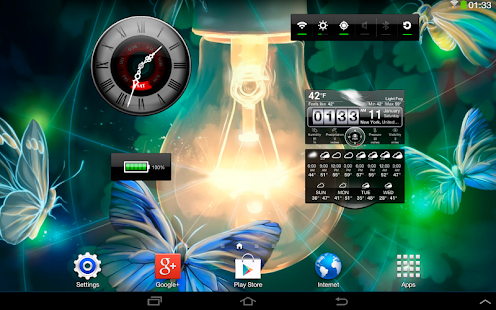
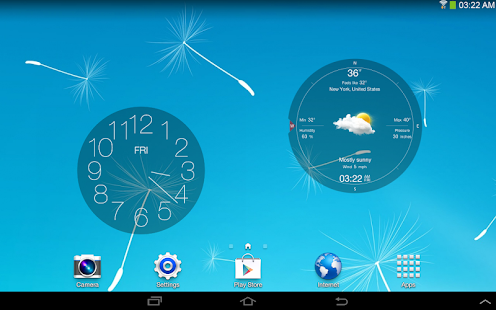
Widgets by Pimp Your Screen Working v1 6 Apk Download

Widgets by Pimp Your Screen can make your phone or tablet truly personal and unique.
Use Best HD Widgets for Android to increase your productivity by adding them to your Home Screen or have a quick access to system settings with Toggles. Use multiple Android Weather & Clock Widgets from the Widget gallery and track time and weather data in different locations.
Use Best HD Widgets for Android to increase your productivity by adding them to your Home Screen or have a quick access to system settings with Toggles. Use multiple Android Weather & Clock Widgets from the Widget gallery and track time and weather data in different locations.
Google Play
v1.6 APK FILE: HERE
Tags: Widgets by Pimp Your Screen apk, Widgets by Pimp Your Screen apk download, Widgets by Pimp Your Screen apk full version, Widgets by Pimp Your Screen v1.6 android, Widgets by Pimp Your Screen paid version
Widgets by Pimp Your Screen is a perfect app to customize the look of your Android device by giving you an exclusive collection of specially designed fancy widgets and cool HD wallpapers.
Widgets by Pimp Your Screen v1.6 Apk
Size: Varies with device | Android: 2.1 and up
Sunday, August 3, 2014
10 tips to make your phone more secure
Your smartphone is more precious than your wallet, your keys and in some cases, your actual computer when it comes to sensitive information - but we all have that nagging guilt that we dont do enough to protect our devices beyond perhaps having a four digit pass code.

Thankfully we are here to help with some top-level tips to help make your phone more secure, protecting those all important messages and images that you dont want falling into the wrong hands.
With around 314 mobiles stolen a day on the streets of London, the risk of things getting out is extremely high.
Of course if youre looking to keep your phone safe from international spies, or snooping networks, you can always check out the BlackPhone... but if youre just the average smartphone user who wants to be a little safer, follow some of our tips below.
Whether you are running iOS, Android or Windows Phone we will always advise you to grab the latest version of the OS available. This can be a little difficult with Android updates often taking a little while to go through manufacturer and network testing but is well worth it.
Part of the reason we suggest grabbing the latest OS is because it comes with all the added bonuses whether its the Control Center of iOS7 or the clear bars on Android KitKat, but also because a lot of security loopholes will have been closed.
These updates dont just pop up in major iterations either; Apple is currently pushing out iOS 7.0.6 in order to close a problem associated with using Apple devices on an unsecured network.
Most manufacturers allow you to set your phone to check for updates automatically, so always make sure this box is ticked.
It seems almost nonsensical in this day and age to not have a basic password on your lock screen, even if it is a basic one. One of the first things wed suggest is to navigate into your devices security settings and enable a pass lock.
There are obvious benefits to having even a basic lock, but whilst face lock of Android might seem fun it isnt the most secure system out there, with many Google devices rating the effectiveness of each security system so you can make an informed choice.
Pattern unlocks and pins are some of the most secure but if you can handle the hassle wed always suggest a full alphanumeric password. Also ensure that any boxes that say "make passwords visible" are also unticked.
If you want to take it one step further then wed also recommend changing your pass code regularly in case someone spots what youve typed in over your shoulder.
One of the biggest threats that could see data leaked is the less-than-humble virus. The problem isnt as widespread as on desktop computers, and if you dont download dodgy software chances are that within a 2 year contract you wont come across anything malicious, but there is still a credible threat out there.
The problem appears to be less hazardous for iPhones thanks to Apples strict controlling of the App store.
The open source nature of Android makes it a lot more vulnerable, as malicious apps can be sideloaded onto the device without being checked by Google. In both cases this is something that can be countered through the use of mobile Antivirus software.
The likes of McAfee, AVG and Lookout grace both the iOS App Store and the Google Play store for added security, but obviously be careful of any apps that seem a little suspicious.
If youre really worried check out the manufacturers website as most will come with a link to their mobile app.
Whilst it can often be a nice idea to download and install apps that arent found on the App Store or Google Play Store, these apps tend to be the ones that are less secure. Google, Apple and Microsoft, as well as the likes of BlackBerry, keep tabs on the apps that are on their app portals.
This means apps that contain malicious code are likely to have been removed before you install them.
Rooting your Android phone or jailbreaking your iPhone can also prove really dangerous, especially if you dont know what youre doing. This is because it breaks down your OS and provides you access to the basic code within and if you can get access, malicious code has a much easier route to making changes too.
If youre more familiar with the world of rooting and jailbreaking then youll have taken measures to ensure the security of your device - so make sure youre certain you know what you want when altering your handset.
One thing that can be particularly important for protecting vital messages and pictures is to add a second layer of security. If youve got a pass code that somehow manages to get into the wrong hands then all your data could potentially be at risk.
With another app you can then add another layer of security by protecting apps with a second code. Vault apps also allow you to be safe by storing all the files that you want to secure within a dedicated area of your device or on an SD card, as well as being able to wipe the data after unsuccessful log in attempts.
Samsungs new Galaxy S5 features a fingerprint scanner to hide certain parts of your phone too - it might not be the easiest thing to use, but at least you can be doubly secure that nobody can get into the places you want hidden.
Read more »
Thankfully we are here to help with some top-level tips to help make your phone more secure, protecting those all important messages and images that you dont want falling into the wrong hands.
With around 314 mobiles stolen a day on the streets of London, the risk of things getting out is extremely high.
Of course if youre looking to keep your phone safe from international spies, or snooping networks, you can always check out the BlackPhone... but if youre just the average smartphone user who wants to be a little safer, follow some of our tips below.
1. Update your software
Whether you are running iOS, Android or Windows Phone we will always advise you to grab the latest version of the OS available. This can be a little difficult with Android updates often taking a little while to go through manufacturer and network testing but is well worth it.
Part of the reason we suggest grabbing the latest OS is because it comes with all the added bonuses whether its the Control Center of iOS7 or the clear bars on Android KitKat, but also because a lot of security loopholes will have been closed.
These updates dont just pop up in major iterations either; Apple is currently pushing out iOS 7.0.6 in order to close a problem associated with using Apple devices on an unsecured network.
Most manufacturers allow you to set your phone to check for updates automatically, so always make sure this box is ticked.
2. Use a secure lock screen
It seems almost nonsensical in this day and age to not have a basic password on your lock screen, even if it is a basic one. One of the first things wed suggest is to navigate into your devices security settings and enable a pass lock.
There are obvious benefits to having even a basic lock, but whilst face lock of Android might seem fun it isnt the most secure system out there, with many Google devices rating the effectiveness of each security system so you can make an informed choice.
Pattern unlocks and pins are some of the most secure but if you can handle the hassle wed always suggest a full alphanumeric password. Also ensure that any boxes that say "make passwords visible" are also unticked.
If you want to take it one step further then wed also recommend changing your pass code regularly in case someone spots what youve typed in over your shoulder.
3. Install antivirus software
One of the biggest threats that could see data leaked is the less-than-humble virus. The problem isnt as widespread as on desktop computers, and if you dont download dodgy software chances are that within a 2 year contract you wont come across anything malicious, but there is still a credible threat out there.
The problem appears to be less hazardous for iPhones thanks to Apples strict controlling of the App store.
The open source nature of Android makes it a lot more vulnerable, as malicious apps can be sideloaded onto the device without being checked by Google. In both cases this is something that can be countered through the use of mobile Antivirus software.
The likes of McAfee, AVG and Lookout grace both the iOS App Store and the Google Play store for added security, but obviously be careful of any apps that seem a little suspicious.
If youre really worried check out the manufacturers website as most will come with a link to their mobile app.
4. Disable apps from untrusted sources and dont root or jailbreak
Whilst it can often be a nice idea to download and install apps that arent found on the App Store or Google Play Store, these apps tend to be the ones that are less secure. Google, Apple and Microsoft, as well as the likes of BlackBerry, keep tabs on the apps that are on their app portals.
This means apps that contain malicious code are likely to have been removed before you install them.
Rooting your Android phone or jailbreaking your iPhone can also prove really dangerous, especially if you dont know what youre doing. This is because it breaks down your OS and provides you access to the basic code within and if you can get access, malicious code has a much easier route to making changes too.
If youre more familiar with the world of rooting and jailbreaking then youll have taken measures to ensure the security of your device - so make sure youre certain you know what you want when altering your handset.
5. Use lock code apps and vaults
One thing that can be particularly important for protecting vital messages and pictures is to add a second layer of security. If youve got a pass code that somehow manages to get into the wrong hands then all your data could potentially be at risk.
With another app you can then add another layer of security by protecting apps with a second code. Vault apps also allow you to be safe by storing all the files that you want to secure within a dedicated area of your device or on an SD card, as well as being able to wipe the data after unsuccessful log in attempts.
Samsungs new Galaxy S5 features a fingerprint scanner to hide certain parts of your phone too - it might not be the easiest thing to use, but at least you can be doubly secure that nobody can get into the places you want hidden.
Smartphones tips and tricks Tablets tips and tricks Smartphones reviews
Smartphones rooting Tablets reviews News from mobile world
Smartphones rooting Tablets reviews News from mobile world
Thursday, July 31, 2014
Why is Microsoft trying to smuggle Windows into your Android phone
For more than two decades, ever since DOS and Windows 3.1x, dual-booting has been restricted to hardcore enthusiasts who found being able to boot from one or more operating systems convenient and useful.

If the presentation by Microsofts Joe Belfiore last week in Barcelona is an indication of how the mobile market will evolve, were about to see a comeback of dual booting with Android and Windows Phone sitting on the same phone.
The push is likely to come from Microsoft for whom this might be one of the biggest punts of its long history, similar to putting Internet Explorer into Windows 95.
The gist of the later part of Belfiores presentation is that Microsoft is working closely with hardware partners to make sure that there is little or no change needed to get a smartphone (or indeed any ARM-based devices) to run Windows Phone or Android.
X86 devices like PCs, laptops and servers run Windows or Linux (or indeed MacOS X) indiscriminately and theres no reason why that shouldnt be the case for smartphones in general.
This is a logical step that is likely to be more helpful to Microsoft than Android - and this tacit agreement will end up being most detrimental to Apple.
It seems likely that Microsoft may encourage partners to offer dual-boot as standard on all Android smartphones by offering Windows Phone for free or for a huge discount.
The cynical among us might suggest that as well as offering Windows Phone for free (or at a low cost), Microsoft will slash the fees associated with cross licensing agreements signed with scores of manufacturers of Android devices to persuade them to put Windows Phone prominently on the Android phone (perhaps on the boot screen).
Either solution will cost money but would enable Microsoft to get Windows into the hands of potentially tens of millions of Android users.
It will hope that they will try Windows Phone and be so enamoured of it that they eventually switch to a solely Windows Phone device or continue to use the two platforms altogether.
This would help Microsoft expand the number of smartphones running Windows Phone exponentially and we might even see Microsoft-backed versions of Android without Googles services (similar to what Nokia is doing), something which would be something of an ironic move.
As always though, the more competition in a market, the more likely innovation will thrive.
So whats the point of dual-booting for consumers? Most end-users and consumers are unlikely to gain much from the exercise, depending on how dual-booting devices are pitched to the mainstream.
But there is a category of users for whom this will be a godsend and that is the business/enterprise audience.
Having Windows 8 Embedded or Windows Phone 8 plus Android on a sleek smartphone that can be used both for work and leisure will be an attractive proposal to some.
Microsofts mobile platform offers easy access to Office 365, Active Directory and the entire Windows ecosystem (including Xbox) and is an incredibly attractive alternative to BlackBerry.
Thats the theory many think Redmond will follow because the other option is to see Windows Phone stuck as the third choice after Android and iOS, and seeing numbers of shipped (but not sold) units increase over time.
Piggy-backing on Googles Android is definitely not an ego-boosting move for Microsoft but it is by far the most pragmatic.
It is also one that can yield great results reasonably quickly, which is what Satya Nadella needs at the moment to stamp his authority on the company.
Read more »
If the presentation by Microsofts Joe Belfiore last week in Barcelona is an indication of how the mobile market will evolve, were about to see a comeback of dual booting with Android and Windows Phone sitting on the same phone.
The push is likely to come from Microsoft for whom this might be one of the biggest punts of its long history, similar to putting Internet Explorer into Windows 95.
The enemy of my enemy is my friend
The gist of the later part of Belfiores presentation is that Microsoft is working closely with hardware partners to make sure that there is little or no change needed to get a smartphone (or indeed any ARM-based devices) to run Windows Phone or Android.
X86 devices like PCs, laptops and servers run Windows or Linux (or indeed MacOS X) indiscriminately and theres no reason why that shouldnt be the case for smartphones in general.
This is a logical step that is likely to be more helpful to Microsoft than Android - and this tacit agreement will end up being most detrimental to Apple.
How bold is too bold?
It seems likely that Microsoft may encourage partners to offer dual-boot as standard on all Android smartphones by offering Windows Phone for free or for a huge discount.
The cynical among us might suggest that as well as offering Windows Phone for free (or at a low cost), Microsoft will slash the fees associated with cross licensing agreements signed with scores of manufacturers of Android devices to persuade them to put Windows Phone prominently on the Android phone (perhaps on the boot screen).
Either solution will cost money but would enable Microsoft to get Windows into the hands of potentially tens of millions of Android users.
It will hope that they will try Windows Phone and be so enamoured of it that they eventually switch to a solely Windows Phone device or continue to use the two platforms altogether.
This would help Microsoft expand the number of smartphones running Windows Phone exponentially and we might even see Microsoft-backed versions of Android without Googles services (similar to what Nokia is doing), something which would be something of an ironic move.
As always though, the more competition in a market, the more likely innovation will thrive.
The business allure of dual-booting
So whats the point of dual-booting for consumers? Most end-users and consumers are unlikely to gain much from the exercise, depending on how dual-booting devices are pitched to the mainstream.
But there is a category of users for whom this will be a godsend and that is the business/enterprise audience.
Having Windows 8 Embedded or Windows Phone 8 plus Android on a sleek smartphone that can be used both for work and leisure will be an attractive proposal to some.
Microsofts mobile platform offers easy access to Office 365, Active Directory and the entire Windows ecosystem (including Xbox) and is an incredibly attractive alternative to BlackBerry.
Thats the theory many think Redmond will follow because the other option is to see Windows Phone stuck as the third choice after Android and iOS, and seeing numbers of shipped (but not sold) units increase over time.
Piggy-backing on Googles Android is definitely not an ego-boosting move for Microsoft but it is by far the most pragmatic.
It is also one that can yield great results reasonably quickly, which is what Satya Nadella needs at the moment to stamp his authority on the company.
Smartphones tips and tricks Tablets tips and tricks Smartphones reviews
Smartphones rooting Tablets reviews News from mobile world
Smartphones rooting Tablets reviews News from mobile world
Subscribe to:
Posts (Atom)