Showing posts with label kitkat. Show all posts
Showing posts with label kitkat. Show all posts
Monday, April 6, 2015
Samsung Galaxy S4 gets leaked KitKat firmware How To Install it on your S4

A test was performed with Android 4.4.2 KitKat firmware on international version of Sasmung Galaxy S4 : GT-I9505 with Octa-Core Snapdragon 600 chipset.
The firmware is an open release for European Samsung Galaxy S4 users and is said that the ROM is highly functionable and quite stable with just few minor bugs.
SamMobile says "so far it’s been pretty stable, except a few minor hiccups here and there" but this is okay because it isnt a final release or a customer release, just a firmware for testing whether its working correctly or not.
Finally Samsung has moved from Green icons to white icons, which are basically stock icons of Google Android 4.4.2 KK OS, so theres nothing customized thing in the statusbar icons. There are some tweaks to the user interface. Also there is a transparent Notificatio bar, which looks cool but nothing done by Samsung here, just tweaked by Google in KitKat update. But, sadly, the interior of notification bar remains same as of Android 4.3 Jelly Bean update for Samsung Galaxy S4, I dont know why Samsung makes their user feels not upgraded because the UI is same! When Googles Nexuses receives updates, they always looks fresh and updated after updating the system by OTA.
Another thing that we noticed was the camera icon. The camera icon is now in the lower right side of the Lockcreen which looks like Facebook messengers popup messages. It allows users to access the camera application as soon as possible when they need it.
According to Sam Mobiles, the performance has been significantly improved of Samsung Galaxy S4 with this Android 4.4 Kit Kat build. Also Sam Mobiles reported that the UI is pretty stable with no lags on changing the device orientations. Further, they also said that the Benchmarks of this device seems to be bump up and are better than Android 4.3 Jelly Bean.
So you can install the ROM too, here you go:
Note: MXRootRom is not responsible for your bricked Samsung Galaxy S4, if you are an experienced user, then try it at your own risk, other users may also try but on their own risk. If you are feeling insecure, then wait for official release of KK for Samsung Galaxy S4!
How To Install/Flash Android 4.4 KitKat firmware by Samsung by Kies:
- Download the Firmware given in the link.
- Extract the firmware with any file extractor like WinRar or WinZip.
- Download and extract the Odin v3.09 too.
- Shut down the device and keep it untouched for some time.
- Now, press and hold Home + Power + Volume down buttons simultaneously to boot into Download Mode.
- Open the Odin on your PC and connect your PC while pressing those buttons. When you will see blue sign on Odin (the sign means that the device is successfully connected and the drivers are also installed) it means you are ready for the next step.
- In the AP section, add I9505XXUFNA1_I9505OXAFNA1_I9505XXUFNA1_HOME.tar.md5 file from the folder in which you extracted some files just now.
- Before moving to the next step, make sure RE-Formatting is not ticked in Odin.
- Click on the big Start button and have some coffee.
- Soon it will boot into Android 4.4 KitKat!
- If you have encourted some errors like Bootloop (Stuck in the Android booting) or any error while flashing then reboot to recovery and choose wipe/factory reset option to reset your internal SD Card and Android software.
- Reboot!
Downloads
- I9505XXUFNA1_I9505OXAFNA1_I9505XXUFNA1_OXA.zip (or simply Android 4.4 KitKat Stock Firmware for Samsung Galaxy S4): Click here.
- Odin v3.09: Click HERE.
Model: GT-I9505
Country: Open Europe
Version: Android 4.4.2
Changelist: 276328
Build date: Thu, 2 Jan 2014 23:30:51 +0000
Product Code: OXA
PDA: I9505XXUFNA1
CSC: I9505OXAFNA1
MODEM: I9505XXUFNA1
Screenshots of this ROM/Firmware:
|
| Add caption |

How to remove Hangouts and more Android 4 4 KitKat apps
Perhaps youve treated yourself to a brand new Nexus 5, or youre eagerly awaiting the moment when the latest flavour of Android hits your handset. However you get hold of Android 4.4 KitKat, youll notice some new features to get to grips with -- if theyre not all to your taste, heres how to undo the changes Google is keen to force upon you.

Hangouts is now Googles all-encompassing messaging solution, covering Web chats, SMS and MMS. Much like iMessage, however, the experience is not quite as smooth and user-friendly as it should be. This being Android, you can set any app you like as the default SMS handler. First of all, download a new app from Google Play -- Chomp SMS and Handcent SMS are two of the most popular choices, but there are plenty to pick from.
Next, choose your default app from Settings > More > Default SMS app -- Hangouts will gracefully relinquish its text messaging duties and stick to instant messaging instead. Make sure you configure the notifications of your new app accordingly to avoid missing any important texts (or getting multiple notifications for every SMS).
KitKat brazenly installs Google Now as the default left-hand home screen (making it one swipe away from your main home screen). There are two ways to get rid of it: one is to switch off Google Now entirely. Tap the menu button (three vertical dots) underneath all of your cards, choose Settings and then turn off Google Now. This means you wont be able to access Google Now from anywhere -- itll be gone completely from your phone or tablet unless you enable it again at a later date.
The other option is to install an alternative launcher. In the same way Android lets you install alternatives for texting, browsing, playing music and doing anything else, you can choose a different app to handle home screen and app-launching tasks. Most of these launchers are free and simple to use, and you can easily uninstall them again if you change your mind: Nova, Apexand Themer are among the most popular options, while KitKat Launchermimics the KitKat look without the Google Now panel. All of these apps have prominent options to enable you to set them as the default launcher on your device. If you install multiple launchers, Android adds a new Home option to the Settings app to help you manage them more easily.
When someone calls you who isnt in your contacts list, KitKat tries to work out who it is, primarily by scanning phone numbers for nearby places on Google Maps. Starting from next year, it will be able to identify individuals too, if those people have agreed to let Google associate their mobile number with their Google+ page and identity.
If you dont want Google to try and identify whos ringing you, open the Settings page from the Dialer app, tap Caller ID by Google and switch it off. The setting to stop people finding you through your mobile number is on the Web: log into your Google Account page, click the View option by the Phone numbers heading, and untick the option to help people find you.
For variety, heres how to bring back a feature that KitKat disables rather than the other way around. The lock screen widgets popular with many users are switched off by default in Android 4.4, which means you cant immediately add handy widgets for tasks, emails and such-like to the lock screen (though the swipe-right camera shortcut is still in place).
Bringing them back isnt difficult. Choose Settings > Security and then tick Enable widgets -- this refers to the lock screen widgets rather than the standard widgets you add to your home screens. With the feature enabled again, you can swipe in from the left edge of the lock screen to add the widgets of your choice.
At the moment, shouting "OK, Google" to launch the search function on your KitKat device only works if you have your language set to US English. Presumably it will eventually roll out to UK English in due course.
If you dont want to have the feature available (it can use up battery life for one thing, and be hijacked by a passer-by for another) head to your Google Now Settings page. Untick the Hotword detection option and your handset is then immune from an "OK, Google" call to action.
Read more »
1. Replace Hangouts as the default SMS app
Hangouts is now Googles all-encompassing messaging solution, covering Web chats, SMS and MMS. Much like iMessage, however, the experience is not quite as smooth and user-friendly as it should be. This being Android, you can set any app you like as the default SMS handler. First of all, download a new app from Google Play -- Chomp SMS and Handcent SMS are two of the most popular choices, but there are plenty to pick from.
Next, choose your default app from Settings > More > Default SMS app -- Hangouts will gracefully relinquish its text messaging duties and stick to instant messaging instead. Make sure you configure the notifications of your new app accordingly to avoid missing any important texts (or getting multiple notifications for every SMS).
2. Reclaim your home screens
KitKat brazenly installs Google Now as the default left-hand home screen (making it one swipe away from your main home screen). There are two ways to get rid of it: one is to switch off Google Now entirely. Tap the menu button (three vertical dots) underneath all of your cards, choose Settings and then turn off Google Now. This means you wont be able to access Google Now from anywhere -- itll be gone completely from your phone or tablet unless you enable it again at a later date.
The other option is to install an alternative launcher. In the same way Android lets you install alternatives for texting, browsing, playing music and doing anything else, you can choose a different app to handle home screen and app-launching tasks. Most of these launchers are free and simple to use, and you can easily uninstall them again if you change your mind: Nova, Apexand Themer are among the most popular options, while KitKat Launchermimics the KitKat look without the Google Now panel. All of these apps have prominent options to enable you to set them as the default launcher on your device. If you install multiple launchers, Android adds a new Home option to the Settings app to help you manage them more easily.
3. Turn off Caller ID
When someone calls you who isnt in your contacts list, KitKat tries to work out who it is, primarily by scanning phone numbers for nearby places on Google Maps. Starting from next year, it will be able to identify individuals too, if those people have agreed to let Google associate their mobile number with their Google+ page and identity.
If you dont want Google to try and identify whos ringing you, open the Settings page from the Dialer app, tap Caller ID by Google and switch it off. The setting to stop people finding you through your mobile number is on the Web: log into your Google Account page, click the View option by the Phone numbers heading, and untick the option to help people find you.
4. Enable lock screen widgets
For variety, heres how to bring back a feature that KitKat disables rather than the other way around. The lock screen widgets popular with many users are switched off by default in Android 4.4, which means you cant immediately add handy widgets for tasks, emails and such-like to the lock screen (though the swipe-right camera shortcut is still in place).
Bringing them back isnt difficult. Choose Settings > Security and then tick Enable widgets -- this refers to the lock screen widgets rather than the standard widgets you add to your home screens. With the feature enabled again, you can swipe in from the left edge of the lock screen to add the widgets of your choice.
5. Not okay, Google
At the moment, shouting "OK, Google" to launch the search function on your KitKat device only works if you have your language set to US English. Presumably it will eventually roll out to UK English in due course.
If you dont want to have the feature available (it can use up battery life for one thing, and be hijacked by a passer-by for another) head to your Google Now Settings page. Untick the Hotword detection option and your handset is then immune from an "OK, Google" call to action.
Sunday, April 5, 2015
Google Nexus 5 made official with Android 4 4 KitKat in tow
The Google Nexus 5 has been officially unveiled following months of rumours and leaks, with the flagship phone becoming the first to run the Android 4.4 KitKat operating system.

Read more »
Set to go head-to-head with the likes of the Samsung Galaxy S4 and iPhone 5S, the Google Nexus 5 will be manufactured by LG, and boast the same 2.26GHz quad-core Snapdragon 800 processor as the Korean company’s own LG G2 handset.
Google Nexus 5 Features
A worthy follow-on to last year’s Google Nexus 4, the newly confirmed Google Nexus 5 features list is brimmed with high-end components.
Lining up alongside the 2.26GHz quad-core processor, the phone will sport a 4.95-inch 1920 x 1080p Full HD, up on the 4.7-inch HD panel on its predecessor. Set to offering stunning visuals, the Full HD display is further enhanced by a 445 pixels-per-inch image density. Providing some added protection, the phone will feature a handy Corning Gorilla Glass 3 coating.
Although on paper the 8-megapixel Google Nexus 5 camera might look like a weak spot when compared with the 13-megapixel offerings on some of its rivals, the integrated snapper is set to benefit from optical image stabilisation options to boost image output. A secondary, 1.3-megapixel camera is included on the phone’s fore for shameless selfies and video calling.
Playing host to the now customary array of Wi-Fi, Bluetooth 4.0, and NFC connectivity options, the Google Nexus 5, unlike the 4 before it will also play host to 4G networking options. Powered by a 2300mAh Lithium-Polymer battery, the phone’s battery life should see you through a full day’s use although this is again down on the 3000mAh offering found on the LG G2.
Lining up at just 130g in weight and a mere 8.59mm thick, the Google Nexus 5 certainly looks the part, with the phone set to be made available in both 16GB and 32GB storage options.
With 2GB of RAM on board, the Google Nexus 5 specs sheet is rounded off by Adreno 330 graphics and the new Android 4.4 KitKat OS, a software package which will introduce cloud based backups alongside a range of other additions.
Google Nexus 5 Release Date and Price
Now that the phone is official, Google looks keen to get the Nexus 5 out to consumers. As such the Google Nexus 5 release date has been set for tomorrow, November 1, with the phone to hit the UK and US simultaneously.
In keeping with the company’s desire to offer high-end products at a reasonable cost, the Google Nexus 5 is nice and friendly on your wallet. The 16GB model will set wannabe owners back £295.
Friday, April 3, 2015
KitKat HD Launcher Theme icons All Version 6 Apk Paid

Works with:
Nova Launcher
Apex Launcher
ADW Launcher Ex
Go Launcher EX
free ADWLauncher
compressed HD Go Launcher (icons only)
Launcher Pro
Winterboard
Smart Launcher
Action Launcher Pro
Atom Launcher
Holo Launcher
Smart Launcher
Unicon only Icon
TSF Shell
ADW Launcher
Walpaper design and resolution
Nova Launcher
Apex Launcher
ADW Launcher Ex
Go Launcher EX
free ADWLauncher
compressed HD Go Launcher (icons only)
Launcher Pro
Winterboard
Smart Launcher
Action Launcher Pro
Atom Launcher
Holo Launcher
Smart Launcher
Unicon only Icon
TSF Shell
ADW Launcher
Walpaper design and resolution
Google Play
DOWNLOAD FULL VERSION APK FILES BELOW:
v5 Download from Zippyshare: HERE
v5 Download from BillionUploads: HERE
v5 Download from Solidfiles: HERE
v5.5.1 Download from UploadRocket: HERE
v5.5.1 Download from Zippyshare: HERE
v5.5.1 Download from Solidfiles: HERE
v6 Download from UploadRocket: HERE
v6 Download from Zippyshare: HERE
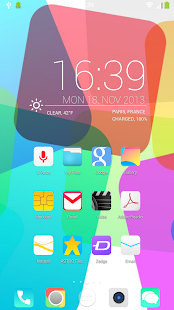
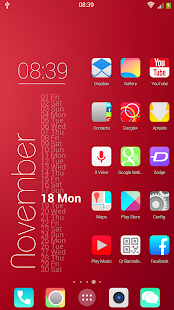
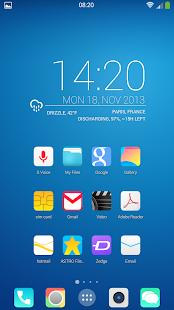
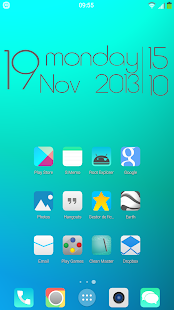
Tags: KitKat HD Launcher Theme icons apk, KitKat HD Launcher Theme icons apk free download, KitKat HD Launcher Theme icons apk android, KitKat HD Launcher Theme icons apk full version, KitKat HD Launcher Theme icons apk v6
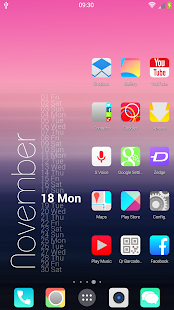
This is Theme Concept ui KitKat HD Hd. This is an icon pack for many Populars Launcher. As Apex Launcher, Nova Launcher, ADW, Holo, Go launcher, Action Launcher, and others. Also compatible.
KitKat HD Launcher Theme icons APK v6
Size: 13 Mb | Android: 2.0 and up
Google working on Android KitKat fix for camera app battery drain
If youve recently updated your smartphone to Android 4.4.2 KitKat and have noticed some abnormally high battery drain youre not alone - but Google is on the case.

Apparently some Android handsets are seeing battery life diminish at a rate of knots after opening the camera application as a result of the phones CPU maxing out.
While Googles fix will be able to alleviate the problem on the likes of the Nexus 5 and Nexus 4, those rocking a HTC, Samsung or any other Android device with a UI skin will have to wait for the relevant manufacturer to address the issue separately.
Theres currently no time frame on Googles fix to roll out to handsets, but its expected to arrive as part of the Android 4.4.3 package - so keep your eyes peeled.
In the meantime a quick reboot of your device is said to provide a temporary solution to the excessive battery drain, but it wont fix the problem.
Read more »
Apparently some Android handsets are seeing battery life diminish at a rate of knots after opening the camera application as a result of the phones CPU maxing out.
While Googles fix will be able to alleviate the problem on the likes of the Nexus 5 and Nexus 4, those rocking a HTC, Samsung or any other Android device with a UI skin will have to wait for the relevant manufacturer to address the issue separately.
Reboot, for now
Theres currently no time frame on Googles fix to roll out to handsets, but its expected to arrive as part of the Android 4.4.3 package - so keep your eyes peeled.
In the meantime a quick reboot of your device is said to provide a temporary solution to the excessive battery drain, but it wont fix the problem.
Smartphones tips and tricks Tablets tips and tricks Smartphones reviews
Smartphones rooting Tablets reviews News from mobile world
Smartphones rooting Tablets reviews News from mobile world
Nexus 5 leaks in a big way with photos Kitkat details and more
The Google Nexus 5 is on its way - possibly today - and weve been treated to a host of leaked images and Android 4.4 details to whet our appetites.

It looks as though several people around the world have got their hands on pre-release Nexus 5 handsets, with one enterprising self-starter taking to Reddit to do an AMA about it.
He described the handset for his eager audience: "[The handset] doesnt feel cheap like a Samsung device, feels great in the hand, its similar to holding a G2 but no volume controls [on the back]."
He also claimed to be "99% certain" that the pricing would start at $349. Thats about £220 or AU$370.
And the question on everybodys lips: what does the Nexus 5 taste like? "Fresh plastic mixed with finger sweat."
As for KitKat, it sounds as though therell be some kind of cloud-based backup option and voice control.
Not long to wait until we find out weve been had: were expecting the Nexus 5 and Android 4.4 to launch later on today.
Read more »
It looks as though several people around the world have got their hands on pre-release Nexus 5 handsets, with one enterprising self-starter taking to Reddit to do an AMA about it.
He described the handset for his eager audience: "[The handset] doesnt feel cheap like a Samsung device, feels great in the hand, its similar to holding a G2 but no volume controls [on the back]."
The price is right
He also claimed to be "99% certain" that the pricing would start at $349. Thats about £220 or AU$370.
And the question on everybodys lips: what does the Nexus 5 taste like? "Fresh plastic mixed with finger sweat."
As for KitKat, it sounds as though therell be some kind of cloud-based backup option and voice control.
Not long to wait until we find out weve been had: were expecting the Nexus 5 and Android 4.4 to launch later on today.
Tuesday, October 28, 2014
KK Apex Nova ADW Kitkat theme Android v1 1 3 Download Apk Full

v1.1.3 Download from BillionUploads: HERE
v1.1.3 Download from DataFileHost: HERE
-----------------------
v1.1.0 APK FILE: HERE
v1.0.2 APK FILE: HERE
v1.1.3 Download from DataFileHost: HERE
-----------------------
v1.1.0 APK FILE: HERE
v1.0.2 APK FILE: HERE
v1.0.0 APK FILE: HERE
Google Play
Here is something which is perfect for you , a Hybrid icon set with minimal looks but with full icon detailing which is all ready to beautify your device. The icons are full HD (144x144) and comes with inbuilt app to apply theme , apply wallpapers , icon request form , and many more.
DESIGNED FOR XHDPI. YOUR RESULTS MAY VARY WITH OTHER SCREEN RESOLUTIONS.
Whats New:
70 new icons added.
4 new wallpapers(Replaced old ones)
Icon chooser list now contain all theme icons.
100 new icons added (From icon request form)
8 Official kitkat walls added (total 10 new walls added)
SCREENSHOT
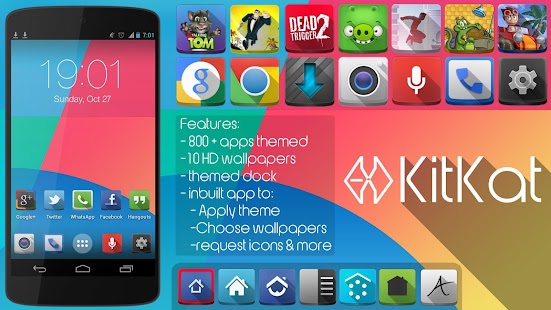
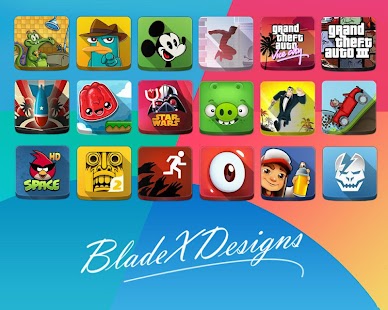
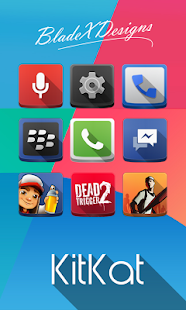
Looking for something minimalistic but with colour detailing?
KK(Apex Nova ADW Kitkat theme) v1.1.3
Size: 44 Mb | Android: 4.0.3 and up
Size: 44 Mb | Android: 4.0.3 and up
Wednesday, October 8, 2014
Android 4 4 update to bring KitKat to the Google Nexus 7 ‘in the coming weeks’
Following the Nexus 5 unveiling, Google has confirmed that an Android 4.4 update will be rolled out ‘in the coming weeks’ to bring KitKat to Google Nexus 7 and certain Samsung Galaxy S4 users.

Read more »
With the latest confectionary based iteration of the operating system having launched today aboard the newly confirmed Google Nexus 5, the search turn software turn hardware giant has now revealed that an Android 4.4 update will land for a range of favoured devices shortly.
"HTC One Google Play edition devices in the coming weeks">Android 4.4, KitKat, which comes on Nexus 5, will also soon be available on Nexus 4, 7, 10, the Samsung Galaxy S4 and HTC One Google Play edition devices in the coming weeks," the company stated during its official launch event.
While a Samsung Galaxy S4 Android 4.4 update is tipped alongside the HTC One, these refer only to the Google Play sold vanilla Android additions of the phone. Standard S4 and One owners will have a considerable wait on their hands before getting the Android 4.4 update.
A relatively minor update on the now superseded Android 4.3 Jelly Bean OS, Android 4.4 KitKat introduces a range of small improvements and minor features, with the operating system to be more accessible to not only users, but more basic handsets.
"Building a platform that makes mobile phones accessible for everyone has always been at the heart of Android," Googles Senior Vice President of Android, Chrome & Apps Sundar Pichai stated in unveiling the revised operating system.
With Android 4.4 having reducing the system demands on host phones, Pichai revealed that KitKat will “run comfortably” as long as phones have just 512MB of RAM.
Monday, July 28, 2014
How to get the best photos from Android 4 4 KitKat
Get your hands on the stock version of Android 4.4 KitKat and youll find theres a new camera app for recording your life on the move. Its not a revolution in photo-snapping technology, but there are some neat new features that you should make yourself aware of.

Weve also covered a few of the options that have been carried over from 4.3 that you might not know about. If youre using 4.4 KitKat on a Nexus 5, check out our review too. You can launch the camera from the apps page or by swiping right on the lock screen.
The headline feature in the new camera app is the HDR+ mode, which gives you a better colour and saturation balance in return for a few milliseconds extra lag (as the camera takes several snaps that it can then combine).
Tap the settings circle in the app and youll find the HDR+ option over on the left. Its certainly not the option to reach for if youre trying to take a quick snap, but if you have time to compose your picture you can get more impressive results with HDR+ switched on. Of course the quality of the app is only half the story -- youll also be relying on the quality of the lens in your device.
The settings within the camera app are by-and-large the same as they were in Android 4.3, but if youre making the jump from a different version of the mobile OS then they are worth flagging up.
Tap the settings circle to access them: modify the exposure setting to let in more or less light and head to the more options page (follow the icon that looks like a row of sliders) to access the white balance options: incandescent, fluorescent, auto, daylight and cloudy are the ones you can pick from, helping you to avoid a strange-looking colour cast on your pictures. Theres a camera timer countdown option too, in case you want to get in a shot with all of your pals.
There are scene modes in the Android 4.4 KitKat camera too, carried over from the previous version: action, night, sunset and party are the options to choose from here, which should cover you for most situations.
The effectiveness of these mode settings can be a little hit and miss in our experience, but there are times when they do make a substantial difference in the quality of your finished photo. Note that choosing a specific scene setting will override the flash setting youve configured, so you might find your phone or tablet blasting out light when you werent expecting it.
Googles photo storage and editing services are all over the place. Google+ has more or less taken over from Picasa, but the provision of both Gallery and Photos apps in Android 4.4 KitKat can be a little confusing.
The Google-owned Snapseed is still available as a separate app on Google Play, but now most of its features are in the aforementioned Gallery app (with some of them in Photos too -- told you it was confusing). All that preamble is a long-winded way of saying you can apply edits to your photos very easily: open up a picture in the Gallery and tap the pencil icon to make changes. Its non-destructive, which means you can undo all of your changes in one swoop if you need to.
Read more »
Weve also covered a few of the options that have been carried over from 4.3 that you might not know about. If youre using 4.4 KitKat on a Nexus 5, check out our review too. You can launch the camera from the apps page or by swiping right on the lock screen.
1. HDR+ your life
The headline feature in the new camera app is the HDR+ mode, which gives you a better colour and saturation balance in return for a few milliseconds extra lag (as the camera takes several snaps that it can then combine).
Tap the settings circle in the app and youll find the HDR+ option over on the left. Its certainly not the option to reach for if youre trying to take a quick snap, but if you have time to compose your picture you can get more impressive results with HDR+ switched on. Of course the quality of the app is only half the story -- youll also be relying on the quality of the lens in your device.
2. Check your settings
The settings within the camera app are by-and-large the same as they were in Android 4.3, but if youre making the jump from a different version of the mobile OS then they are worth flagging up.
Tap the settings circle to access them: modify the exposure setting to let in more or less light and head to the more options page (follow the icon that looks like a row of sliders) to access the white balance options: incandescent, fluorescent, auto, daylight and cloudy are the ones you can pick from, helping you to avoid a strange-looking colour cast on your pictures. Theres a camera timer countdown option too, in case you want to get in a shot with all of your pals.
3. Set the scene
There are scene modes in the Android 4.4 KitKat camera too, carried over from the previous version: action, night, sunset and party are the options to choose from here, which should cover you for most situations.
The effectiveness of these mode settings can be a little hit and miss in our experience, but there are times when they do make a substantial difference in the quality of your finished photo. Note that choosing a specific scene setting will override the flash setting youve configured, so you might find your phone or tablet blasting out light when you werent expecting it.
4. Edit on the go
Googles photo storage and editing services are all over the place. Google+ has more or less taken over from Picasa, but the provision of both Gallery and Photos apps in Android 4.4 KitKat can be a little confusing.
The Google-owned Snapseed is still available as a separate app on Google Play, but now most of its features are in the aforementioned Gallery app (with some of them in Photos too -- told you it was confusing). All that preamble is a long-winded way of saying you can apply edits to your photos very easily: open up a picture in the Gallery and tap the pencil icon to make changes. Its non-destructive, which means you can undo all of your changes in one swoop if you need to.
Friday, July 18, 2014
Install CyanogenMod 11 4 4 KitKat in Samsung Galaxy S I9000
Samsung Galaxy S I9000 is the oldest mobile phone in Galaxy series by Samsung but still they are quite popular because S has great development and its very cheap too. Till now there is Android 4.3 Update for Samsung Galaxy S I9000 but now you could update it from Android 4.3 to 4.4 too! There will be very less noticeable changes in KitKat when youll upgrade it from Jelly Bean but you can notice the performance in KitKat OS. Samsung actually left support for this device because its old and they want users to buy Galaxy S3 or S4 but we can get KitKat by ROM! Yeah, if you have rooted your Samsung Galaxy S I9000 then you can surely upgrade it to KitKat.

Not only the AOSP ROM! You will get CyanogenMod 11 [KitKat] for Samsung Galaxy S I9000. Its a great ROM (CyanogenMod). You will get many extra features added by CM which you wont find in AOSP ROMs. CyanogenMod 11 is totally customizable so you can set the color of notification bar, change to millions of themes, use DSP Manager. Lets see what you will get in CyanogenMod 11-

Not only the AOSP ROM! You will get CyanogenMod 11 [KitKat] for Samsung Galaxy S I9000. Its a great ROM (CyanogenMod). You will get many extra features added by CM which you wont find in AOSP ROMs. CyanogenMod 11 is totally customizable so you can set the color of notification bar, change to millions of themes, use DSP Manager. Lets see what you will get in CyanogenMod 11-
- DSP Manager- Love the base? CyanogenMod has made an application that can control your loud speaker, headssets sound. In short it is an equalizer. You can set Loud Sound mode, Bass mode, Treble Mode and other Modes.
- Incognito Mode- You want to be anonymous and surf the internet? With CM you can be anonymous while browsing the internet, I mean you can fake the IP address and hence you are anonymous.
- Theme Changer- Bored of changing ROMs for just themes? With CM 11 you can download hundreds of themes available on Play Store as well as from XDA or blogs. Pink, Blue, Red, Yellow or any color, even transparent.
- Faster- The AOSP ROMs are always slow because of their blotwares, heavy themeing, high RAM counsming applications etc. but CyanogenMod is 5x faster than AOSP ROMs, I can guaranty you that. It has zipaligned applications, tons of tweaks inside framework, boot etc.
Actually there are many features but even I am excited to show you CyanogenMod 11 for Samsung Galaxy S. Lets not wait and see whats required, downloads and install tutorial.
Prerequisite
- The ROM is only made for Samsung Galaxy S I9000, please do not try it on your device untill youve S I9000 because it can lead to brick. No support will be provided to the users who will install this ROM on any other device.
- Backup your current data and contact numbers because in the process of installing CyanogeMod, the data will be totally erased. You can backup your data with GMAIL or with applications available in Google Play Store.
- Make a Nandroid backup before trying to install the ROM. If you backup the ROM with CWM (Nandroid backup) then you can easily restore the ROM if you found the ROM is not good or you find any bugs. The ROM is not supported by CyanogenMod so we cannot say that everything will be right. So be on the secure side by performing Nandroid backup.
- Before flashing the ROM, make sure the USB Development is enabled. To enable it go to
Settings -> developer options > check the USB Debugging checkbox. - Before charging make sure you have more than 70% battery because if the installation failed in between (because of no battery) then you might brick it.
Note
You might get set_metadata_recursive related errors if you are installing the ROM on custom kernel not supporting SELinux support to fix it, install any other kernel before flashing [having SELinux support] or stock kernel or simply install CM 10.2 before flashing CM11.
Downloads
Samsung Galaxy S I9000 KitKat CyanogenMod 11.zip
Google Apps
How To Install CyanogenMod 11 [KitKat] in Samsung Galaxy S I9000
[Case 1] First time CyanogeMod installation [No CM installed before]
- Download the ROM package
- Move it to Internal Storage
- Reboot to ClockWorkMod Recovery
- Make a Nandroid backup
- Wipe the data partition and cache partition
- Flash the ROM from internal memory
- [Optional] install Google Apps
[Case 2] Upgrading from CyanoegnMod 7/9
- Download the ROM package
- Push it to Internal SD Card
- Reboot to CWMR
- Make a full backup [Nandroid Backup]
- Perform full Wipe
- Install the ROM
- Optinally install GApps
[Case 3] Upgrading from CyanogenMod 10/10.1
- Download the ROM and move it to internal SD Card
- Install the ROM and you will see set_metadata_recursive error, thats normal
- Reboot!
- Reboot to CWM again
- Make a Nandroid backup
- Install the ROM again from internal SD card
- Optionally restore the data
- Optionally restore the Google Apps
[Case 4] Upgrading from CyanogenMod 10.2
- Make a Nandroid backup
- Download the ROM & push it to internal SD card
- Install the ROM with CWM Recovery
- [Optional] Install Google Apps
[Case 5] Upgrading from other CM 11 build
- Make a Nandroid backup
- Download and push the ROM to internal SD card
- Flash the ROM
Saturday, June 7, 2014
Download and Install Android 4 4 KitKat Apps on your Android
KitKat is latest OS by Google Android. You can try many other launchers on Play Store but KitKat launcher is best because of its User Interference and its features. The launcher is real and not fake or themed launcher. It is original launcher extracted from Google Android KitKat 4.4 Source Code. No edits are made, in short it is totally pure & untouched KitKat Launcher. The launcher is tried by me and I found it working without any lag. By following this guide, you can also enjoy/install Google KitKat 4.4 Launcher on your Jelly Bean Android. If youre using Ice Cream Sandwich, Ginger Bread, Honey Comb, Froyo etc. then please try themed launcher because it is only compatible with 4.1 Jelly Bean + OS.
The launcher is not available in Play Store. There are only themed launcher like Solo theme launcher etc. These launcher are not having these features that youll get in this launcher like Google Now, Google Play Services 4.0 and other features.
Prerequisites
Downloads
The launcher is not available in Play Store. There are only themed launcher like Solo theme launcher etc. These launcher are not having these features that youll get in this launcher like Google Now, Google Play Services 4.0 and other features.
Prerequisites
Enable Unknown Sources installation in your Jelly Bean
- Open the drawer of your launcher
- Open Settings Application from the launcher
- Scroll down a bit and select Security tab
- Now enable/check small checkbox with Unknown Sources
- Click OK.
Now you can install applications by download them from online sites or from applications like Blackmart etc.
Downloads
- GoogleHome.apk (The main launcher)
- GoogleNow.apk (New GoogleNow Application)
- PrebuiltGmsCore.apk (Google Play Services 4.0)
- Hangouts 2 (Hangouts Application)
- GoogleCamera.apk (Google Camera, will replace stock camera!!!!)
- GalleryGoogle.apk
Requirements
- Any 4.1 JB, 4.2 JB, 4.3 JB device
- Rooted Android device (if you want to install Camera/Gallery Application!)
How To Install them!
Launcher
- Download GoogleNow Application and install it first you install the launcher.
- Now install PrebuiltGmsCore Application and install it too
- Then finally download the Launcher
- Install it!
Hangouts 2
- Download the Application
- Move it to the SD Card
- Install it
Gallery
- Download the Application and move it to the SD Card
- Remove the old/stock Gallery Application from the System [in /System/App]
- Move the file from SD Card to /System/App and give it the permissions rw-r-r by Root Explorer or any other Explorer
- Reboot!
Camera [Way 1]
- Download the Application
- Move it to the SD Card
- Install it
*If that does not works then follow this one!*
Camera [Way 2]
- Download the Application.
- Move it to the SD Card.
- Remove/Delete the Stock Camera Application from /System/App folder.
- Move the file from SD Card to the /System/App folder.
- Change the permissions of the application you just pushed now to rw-r-r.
- Reboot!
Now youve turned your Jelly Bean device to KitKat! Share it with your friends and if youre having any problem while installing/downloading the files then shoot a comment here.
Thursday, March 20, 2014
HTC One Android 4 4 KitKat update to launch next week
Following much talk, HTC has confirmed that the eagerly awaited HTC One Android 4.4 KitKat update will start being rolled out from next week.

Read more »
While the Taiwanese manufacturer has confirmed that the HTC One KitKat update will be made available for unlocked handset owners in the US within a matter of days, the company has yet to detail when UK residents can expect the software patch.
“HTC One owners, final KitKat software has entered carrier labs for final testing and expect certification next week,” the company announced via its official Twitter feed.
Far from a surprise release, 84 days ago the manufacturer announced that the HTC One Android 4.4 KitKat update would be rolled out within 90 days, a promise that has ensured next week will see the software introduced.
While HTC continues to update its current flagship phone, attention has already turned to the company’s next-generation handset.
Recent HTC One 2 rumours have claimed that the second-generation device will be officially unveiled next month, in the days leading up to MWC 2014.
As well as boasting a further refined metal-hewn body, the HTC One 2, also doing the rounds under the moniker of the HTC M8, will be upgraded to a 5-inch, 1080p Full HD display, Snapdragon 800 quad-core processor and the Android 4.4 KitKat OS as standard.
Subscribe to:
Posts (Atom)